
Date & Task Deadline Planner combines a deadline list, manual time logs and date calculators. Use Deadlines to keep a dated task list, Today to record work or study sessions, Calendar to review those saved sessions, and Calculator to compare dates or check a birth date.
Add a task in Deadlines
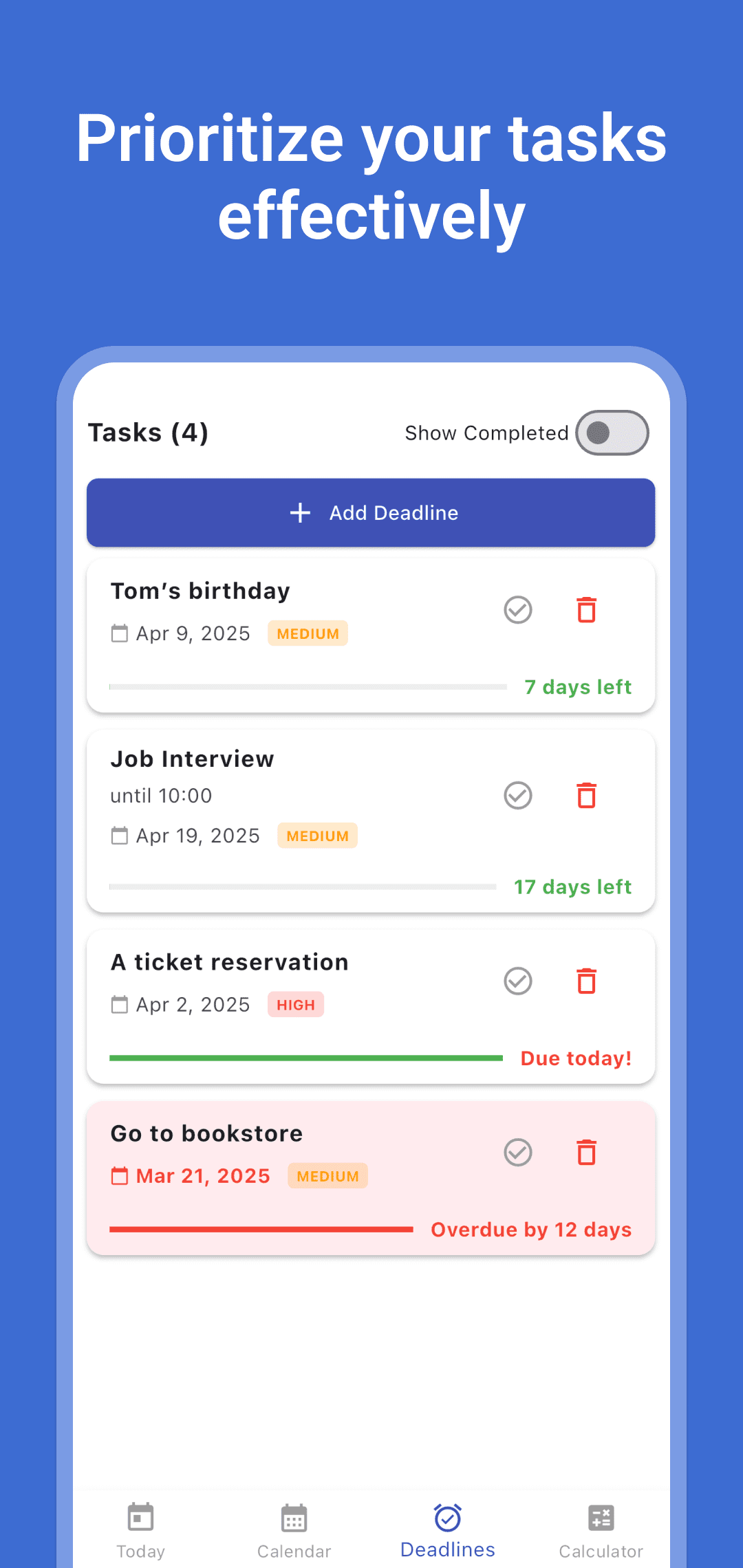
- Open Deadlines and tap Add Deadline.
- Enter a Task Name and, if useful, a description.
- Choose the Deadline date and a Low, Medium or High priority. The date picker covers January 1, 2000 through January 1, 2100.
- Tap Add Deadline to add the card. Check its date, priority and days-left label.
- Tap the check-circle icon when the task is complete. Completed cards are hidden unless Show Completed is switched on; switch it on to find a completed card and mark it incomplete again. Use the trash icon and confirmation dialog to delete a task.
The bar on an incomplete card represents time elapsed between creation and the deadline, not the amount of work you have finished. A full bar does not mean the task is complete. Labels such as Due today! and Overdue by … days describe calendar-day differences when the screen is rebuilt; they are not a continuously ticking hours-and-minutes countdown.
Deadline dates do not schedule phone notifications. Use another reminder method for anything that needs an alert, and reopen the list to check its current state.
Record time in Today
Today records sessions you enter manually. It is not an hourly agenda imported from your calendar, and saving a task in Deadlines does not create a time entry.
- Check the date in the header. Tap it to choose a different day; Go to Today returns to the current day. The entry picker covers January 1, 2020 through January 1, 2030.
- Select Start Time and End Time.
- Choose Work, Study, Personal or Training. Use Add Details for an optional description.
- Tap Save Entry, then check the session in the list and the category summary or pie chart.
- To correct a saved session, delete it with the trash icon and confirmation dialog, then enter its replacement. There is no in-place session editing control in this workflow.
Each session contributes its full end-minus-start duration. For example, these two Work entries leave lunch outside the recorded time:
| Category | Start | End | Recorded duration |
|---|---|---|---|
| Work | 09:00 | 12:00 | 3 hours |
| Work | 13:00 | 17:00 | 4 hours |
| Work total | 7 hours |
A separate Study entry from 19:00 to 20:30 adds 1 hour 30 minutes to Study. Overlapping entries are added too, so check the list for duplicate sessions rather than assuming the summary removes overlaps.
Both times in a Today entry use the selected date. An end time earlier than its start is rejected: 22:00 → 06:00 is not automatically interpreted as an overnight session. There is also no separate break-deduction field. This workflow is suitable for separate sessions within one day; it does not calculate pay or decide which time must be paid.
Review saved sessions in Calendar
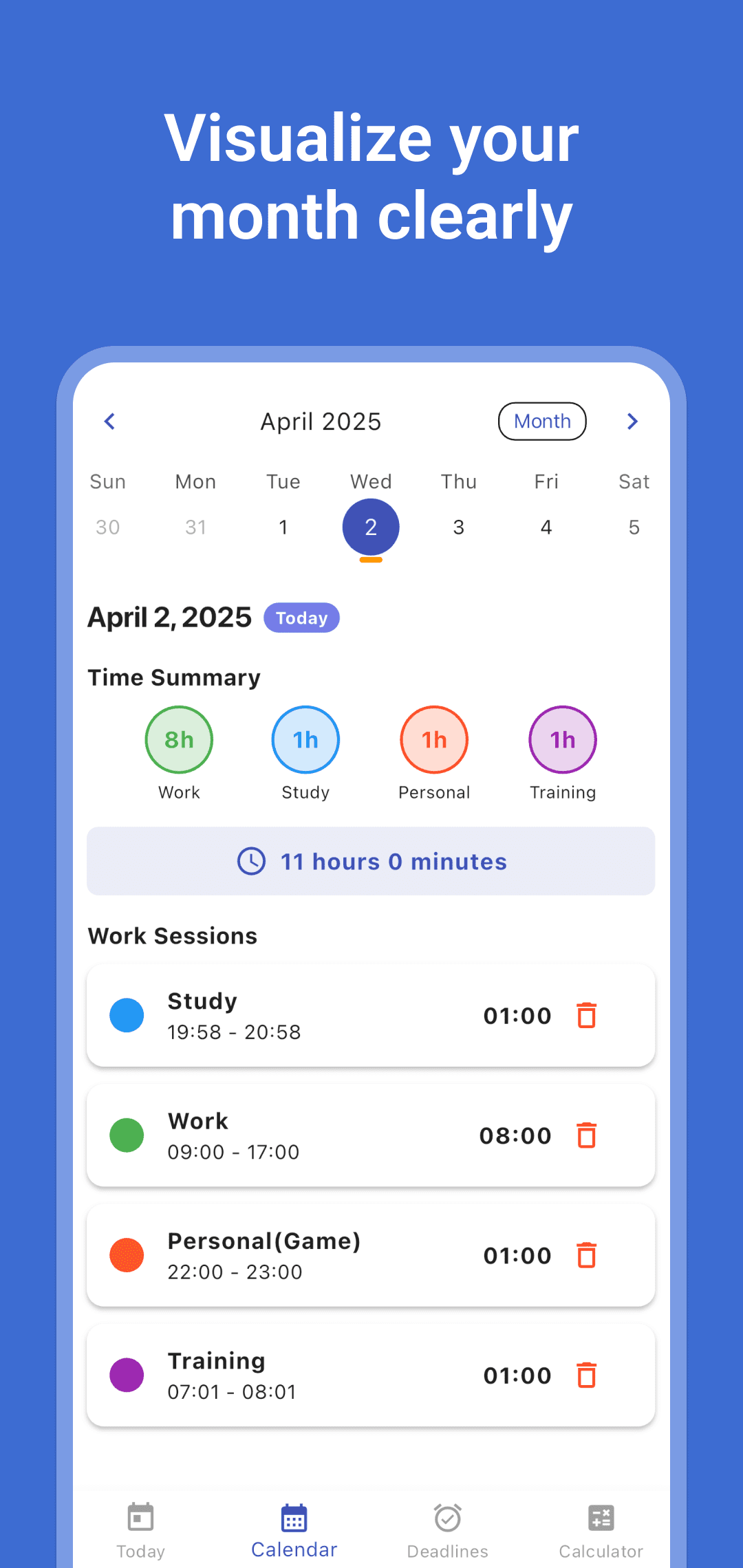
Open Calendar, select a day and read its category totals, total time and session list. Use the calendar's format control to change its week or month view. Markers identify days with saved time entries.
Calendar displays the time logs from Today. Tasks from Deadlines are kept in their own list and do not appear here as calendar events. Return to Today to add a missing session for the selected date.
Compare two dates in Calculator
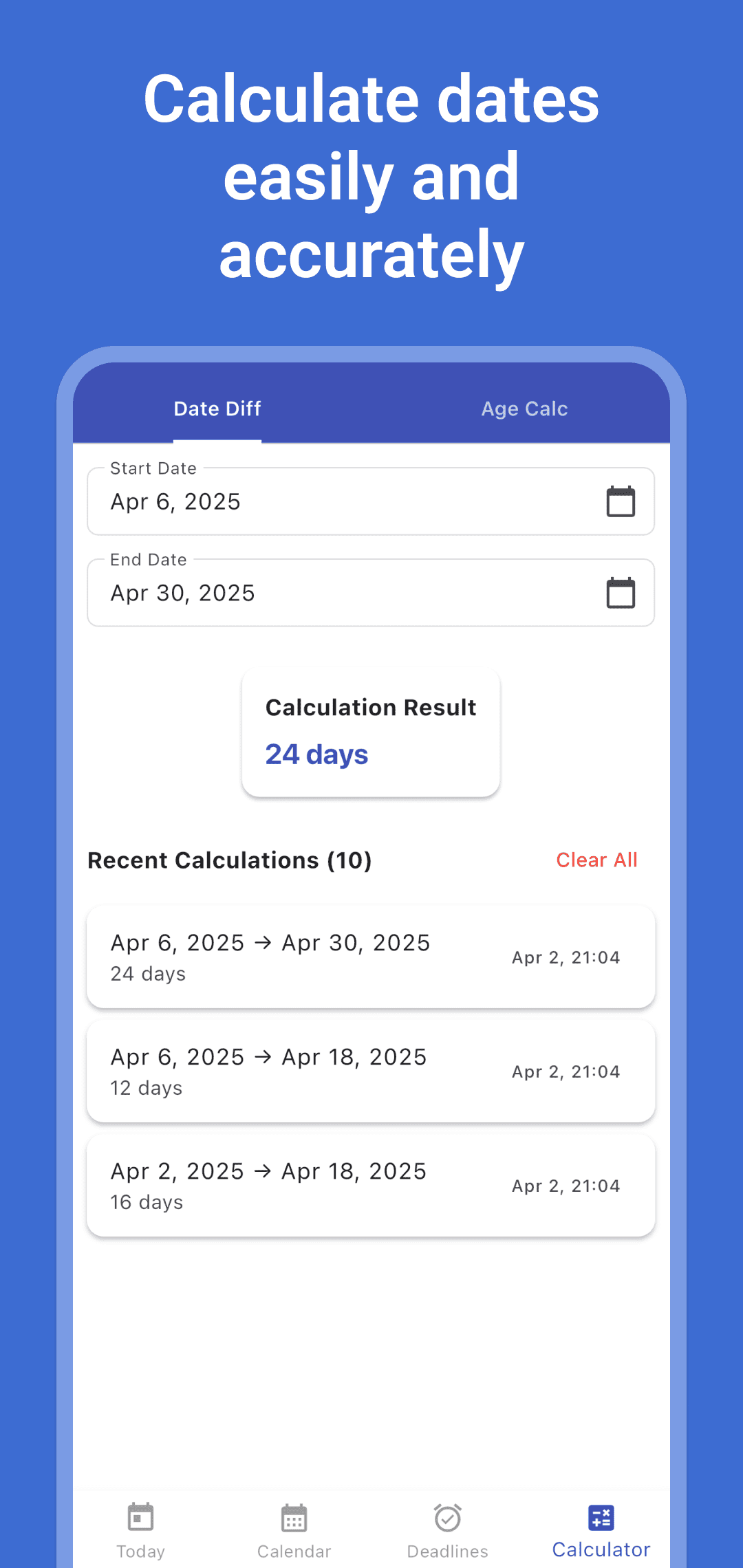
Open Calculator → Date Diff, then choose Start Date and End Date. The result updates when a date changes and the calculation is added to Recent Calculations automatically. The picker covers January 1, 1900 through January 1, 2100.
The original example, April 6, 2025 → April 30, 2025, returns 24 days. The same date at both ends returns 0 days. This is a difference between dates, not a count that includes both endpoints.
If you move Start Date beyond End Date, the app moves End Date to one day after the new start. Moving End Date before Start Date moves the start to one day earlier. Recheck both fields after changing either one. Tapping the Date Diff tab also resets the active dates, so do not assume the previous pair is still selected.
Recent Calculations retains up to 10 entries. Clear All asks for confirmation before clearing that history. Keep a separate copy of anything you need long term; a changing date field can create another history entry.
Check month-end and birthday results
The years/months/days calculation has month-end limitations. In the reviewed version, January 31 to March 1, 2026 displays 1 month, although the underlying calculation has a negative day remainder. Double-check short months and leap-day cases before using a result for an important deadline. The app does not apply a business-day calendar or a rule for counting contractual dates.
In Age Calc, select Birth Date to see an age display, birth weekday, whole elapsed days and hours, and the next birthday message. The age screen refreshes once a second while its tab is active. It accepts a date rather than a birth time, so the hours/minutes/seconds shown are not a precise age measured from your time of birth. A February 29 birthday is normalized to March 1 in a non-leap year. The Fun Facts figures are formula-based estimates, not health measurements.
Keep an independent copy of important records
Time entries and date-calculation history use local app storage. Tasks and selected dates use local settings. There is no account-based synchronization or in-app export/import workflow in the reviewed version. Confirm that a new entry is still present after reopening the app, and keep important dates and records separately before uninstalling or changing devices.
The app includes advertising and a consent flow. Local record storage does not mean every part of the app works without a network connection.
Use the download links above for the current Google Play listing or App Store listing. For questions, include your platform, app version, selected dates and expected result when contacting support. See the privacy policy for data-handling information.