

Millisecond Clock, also listed as ms clock, displays the current time in large digits and includes a countdown timer and a lap stopwatch. It is available for Android and iPhone. Use Clock to see the time, Timer to count down a short task, or Stopwatch to see how much time has passed since starting.
Choose the screen for your task
| Task | Screen | What it shows |
|---|---|---|
| See the current time | Clock | Device time and date, with optional fractional digits |
| Count down a chosen duration | Timer | Minutes and seconds you selected, remaining time and an in-app completion notice |
| Measure time since starting | Stopwatch | Total elapsed time and Lap records |
| Change the display or time offset | Settings | Size, font, theme, display switches and Time Offset |
The images below are retained from the original introduction. Some show the earlier combined Timer & Stopwatch tabs. In the reviewed 1.8.1 source, Clock, Timer, Stopwatch and Settings have separate bottom navigation items, so the layout can differ in your installed version.
Clock: display your device time
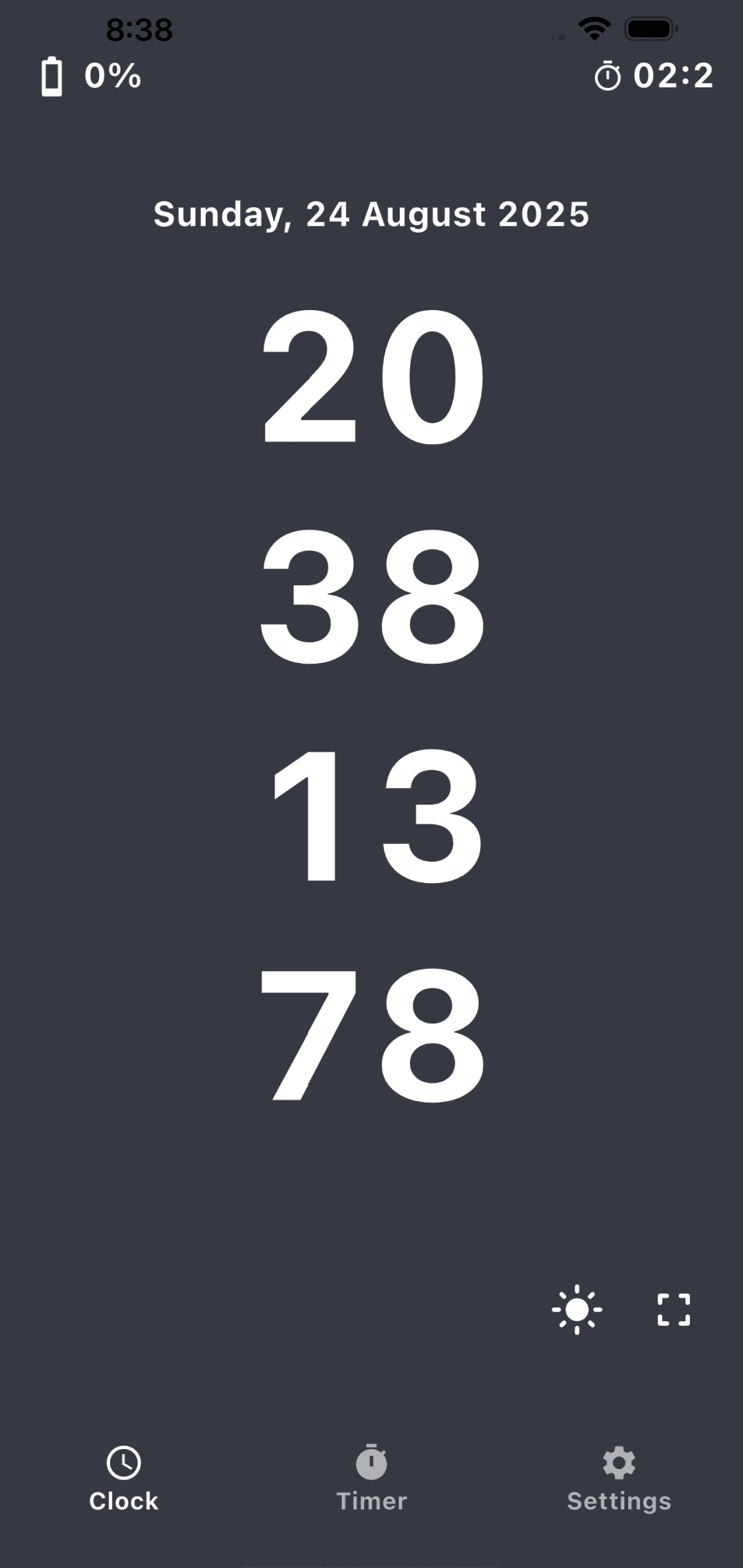
Clock shows your device's current time. You can hide the fractional part or show one or two digits. Two digits represent a 0.01-second display step, not a 1/1000-second display or a guarantee of that accuracy. The app is not described here as automatically synchronizing with an external standard-time server.
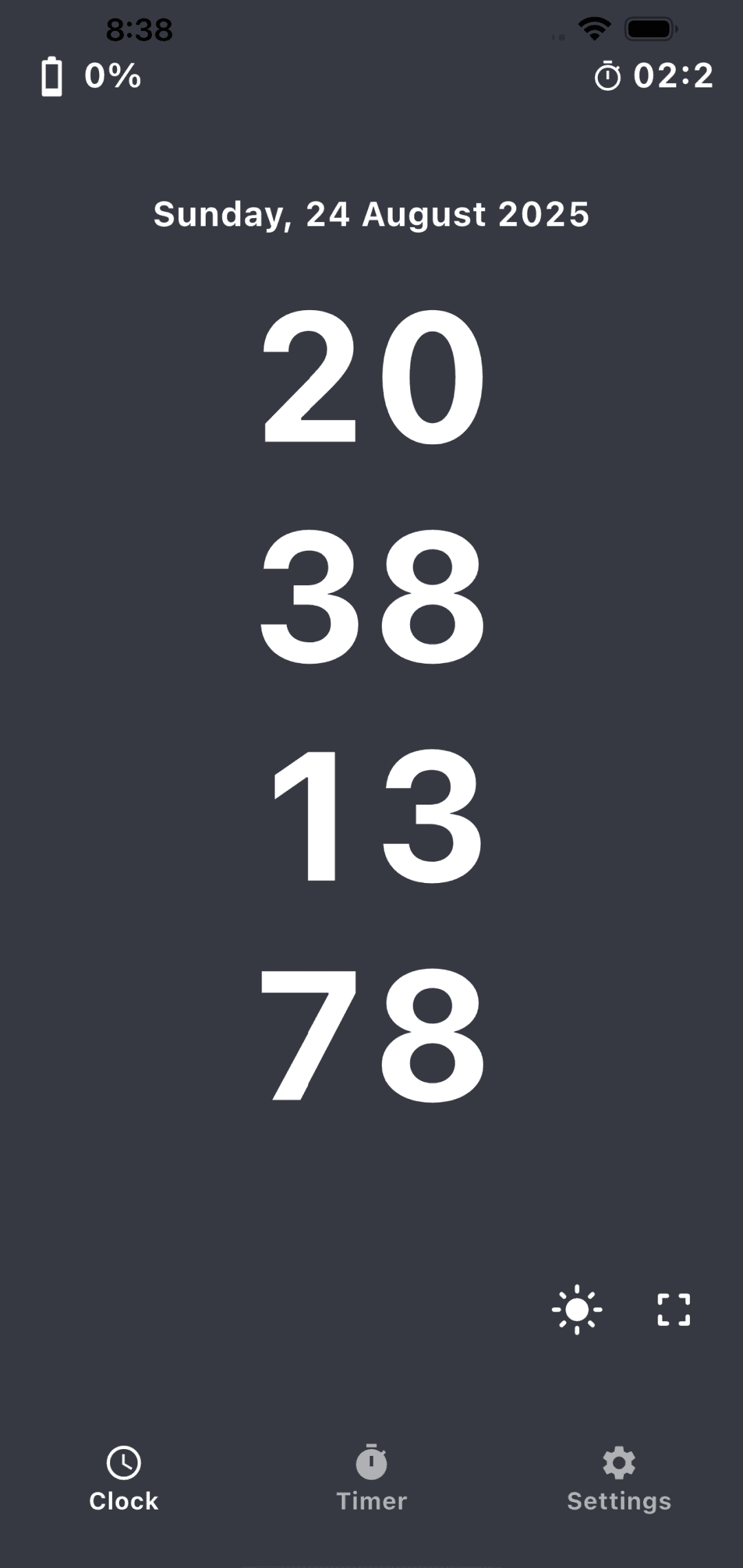
- Portrait mode stacks the time digits; landscape mode displays the time on one line.
- Use the fullscreen icon to expand the display. To find Settings again, leave fullscreen and return to portrait orientation.
Keep screen oncontrols the screen-on setting. Check your device state and battery use when leaving the display open.- Battery percentage, date format and the small elapsed-time display are separate settings. If that elapsed display is enabled, double-tap it to restart its reference time. It is separate from the Stopwatch lap list.
Time Offset adjusts the displayed clock
Settings includes Time Offset, a manual adjustment from −5,000 to +5,000ms. Controls change it by ±1ms, ±10ms or ±100ms, or reset it to zero. For example, +100ms displays the clock 0.1 seconds ahead of device time.
The adjustment affects the displayed clock time and date. It does not adjust Timer, Stopwatch or the small elapsed display, change the device's own time setting, or automatically synchronize two devices. Leave it at zero when you do not need a display offset.
Timer: start, pause and resume a countdown
Choose a preset of 1m, 3m, 5m, 10m, 15m, 30m or 1h, or enter minutes and seconds. The initial duration is five minutes. The custom picker offers 0–59 minutes and 0–59 seconds; choose the 1h preset for one hour.
- Select a duration and tap
Start. A zero duration cannot start. - Tap
Pauseto stop temporarily andResumeto continue. If less than one second remains, the paused button can readStart. - Tap
Resetto clear the active countdown and return to the selected input duration. - The last minutes and seconds you started are used for the next input. This does not save an active countdown or a completion history.
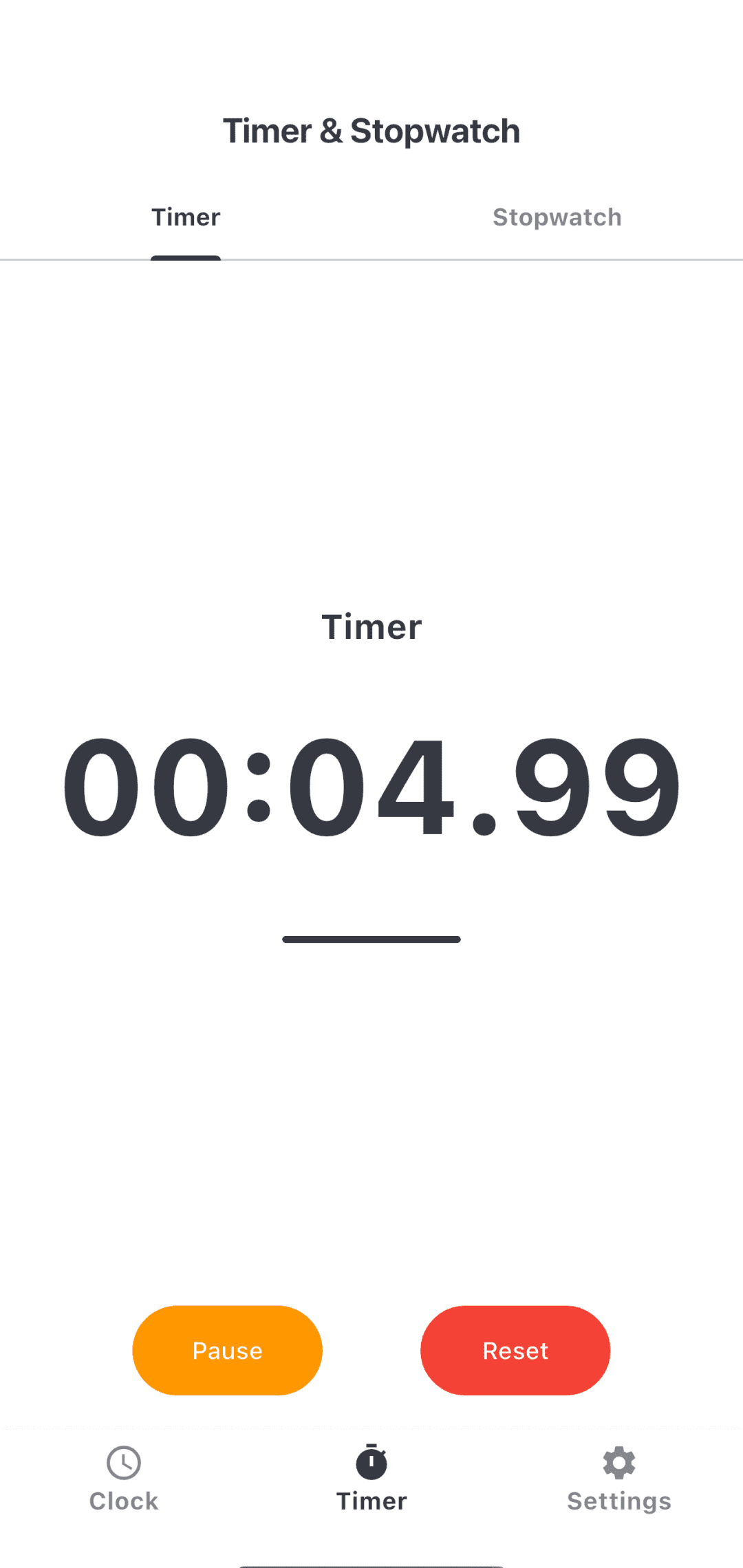
At completion, the app shows Timer Complete! and requests sound and vibration. Timer completion sound controls the sound; switching it off does not switch off vibration. Device settings and execution state affect whether you hear or feel the alert. This is not a guarantee of an operating-system scheduled alarm while the screen is locked or the app is in the background.
The countdown decreases through periodic updates, so delayed app processing can make it differ from actual elapsed time. The Dart periodic timer documentation also explains that callback intervals are not guaranteed to be exact. Use your device's alarm as well for an appointment that requires an alert at a specific time.
Stopwatch: total time and Lap records
Tap Start in Stopwatch to begin. Time is displayed as minutes:seconds with two fractional digits. While it is running, Lap adds the total and interval time to the list, with the newest record first.
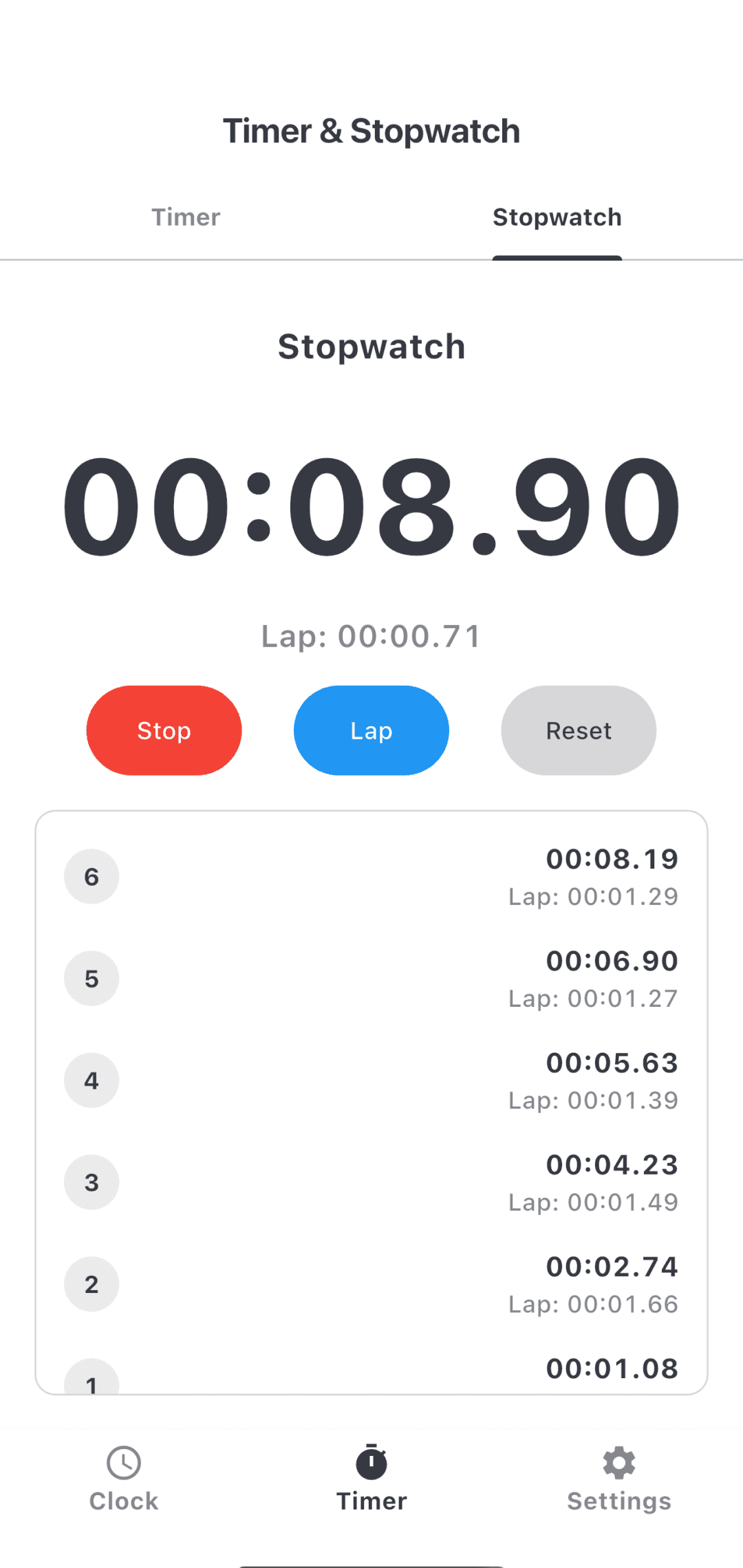
Pausestops total elapsed time;Resumecontinues it. Lap is unavailable while paused.- When stopped,
Resetclears the time and lap list. While running, the button readsRestart: it clears the records and continues measuring. - In the currently reviewed behavior, a Lap interval after resuming can include time spent paused. Use an uninterrupted run if you need intervals that exclude a break, and avoid comparing paused intervals on the same basis.
- Lap records belong to the current screen session. They are not a saved history or an export that remains available after the screen is removed or the app is closed.
The total time uses Dart Stopwatch, with separate display updates. Fractional digits do not establish synchronization between devices or certified accuracy for sports or laboratory measurements.
Size, fonts and themes
In Settings, Time Font Size adjusts the main clock digits from 70% to 120% in 5-percentage-point steps, giving 11 choices. The default is 100%. The display can scale down to fit, so the selected percentage does not guarantee the same percentage increase in rendered pixels. This setting does not scale the date, menus, Timer and Stopwatch together.
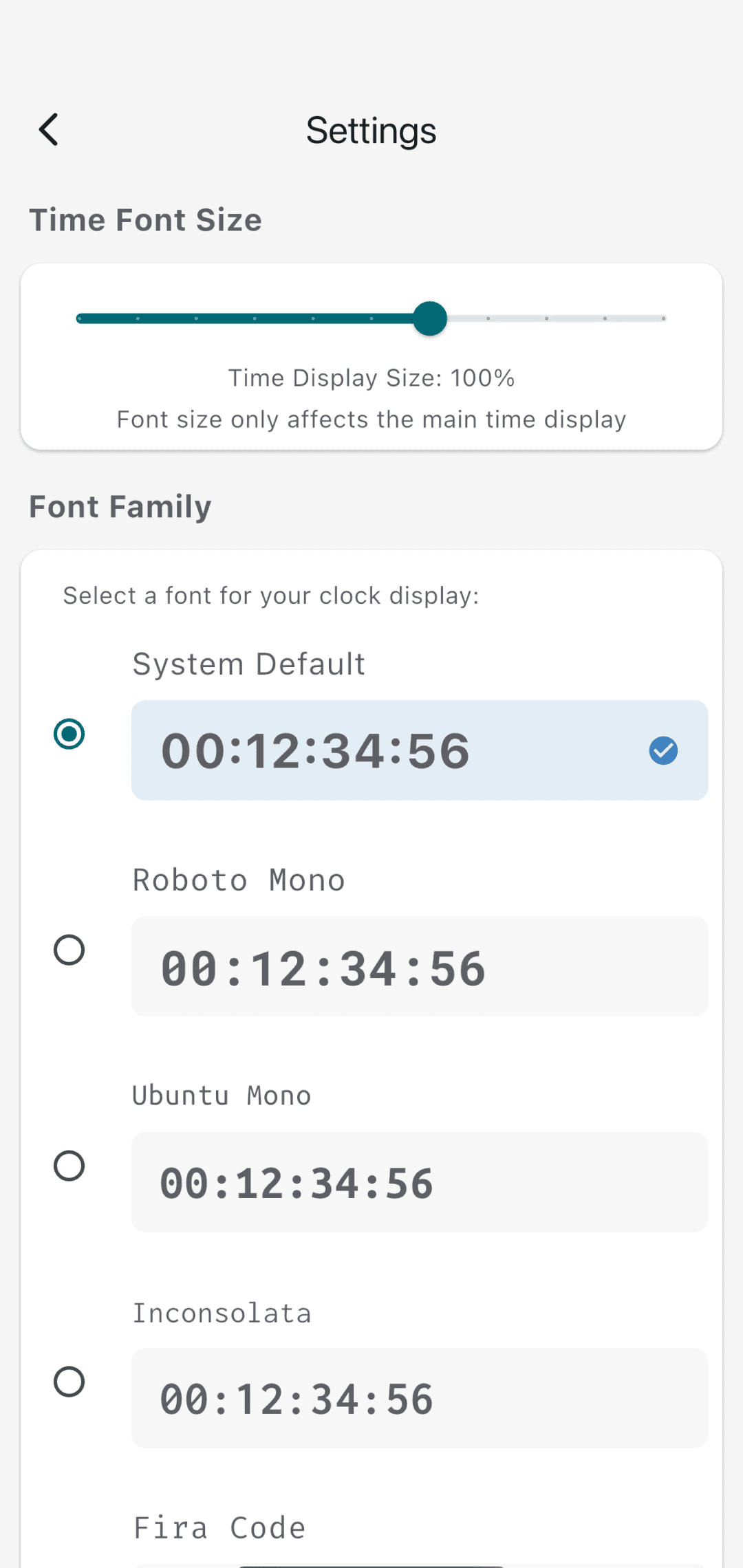
Font Family offers System Default, Roboto Mono, Ubuntu Mono, Inconsolata, Fira Code and Source Code Pro. Choose a light or dark theme to suit your surroundings and preference; a theme is not a promise of eye-health benefits.
Display preferences are stored on the device as they change, without a separate Save button. This is not a promise of account synchronization or restoring settings after uninstalling or moving to another device.
Installation and support
Use the app links below to find ms clock for Android or iPhone. Check the store listing for current device support and advertising information before installing. For another design, see the separate circular millisecond clock introduction.
If behavior differs from this guide, contact app support with your device, OS and app version, the affected screen, fractional-digit and Time Offset settings, and the steps that led to the issue. For sound issues include the sound setting; for Lap issues include whether you used Pause and Resume.
This introduction was reviewed on October 9, 2026 against local source 1.8.1+19 and public store information. The public App Store version was 1.8.1. The displayed Android version on Google Play and installed-binary behavior need separate confirmation.