

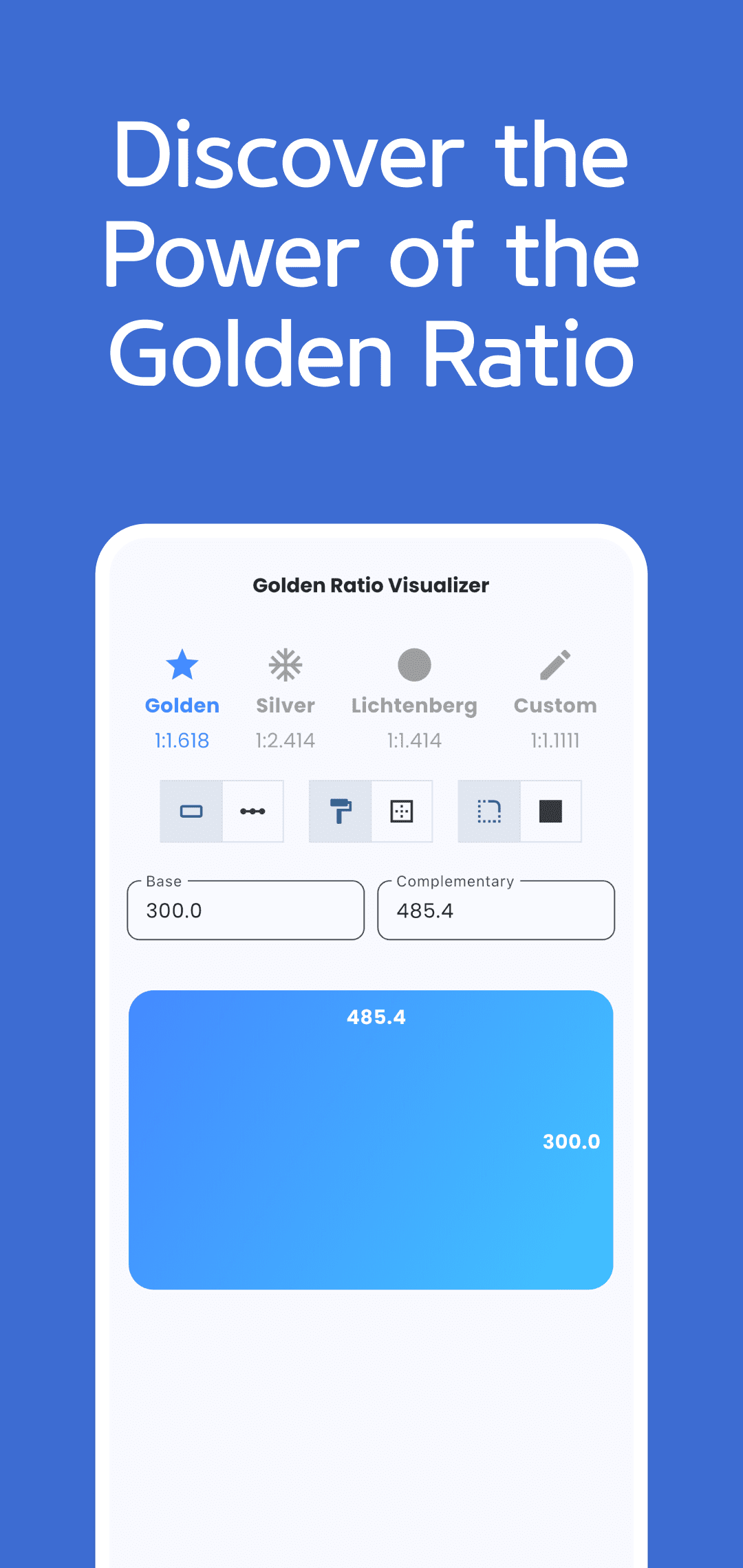
Golden Ratio Visualizer & Calc calculates a Base value and its Complementary value, then shows their proportions as a rectangle or two lines. Choose a ratio and enter either value to calculate the other.
Choose a ratio and enter a value
- Select Golden, Silver, Lichtenberg or Custom at the top.
- Enter a positive Base value. The app updates
Complementary = Base × ratio value. - Enter Complementary instead to calculate
Base = Complementary ÷ ratio value. In the rectangle, Complementary labels the horizontal dimension and Base labels the vertical dimension. - For Custom, enter a multiplier in Custom Ratio. To use
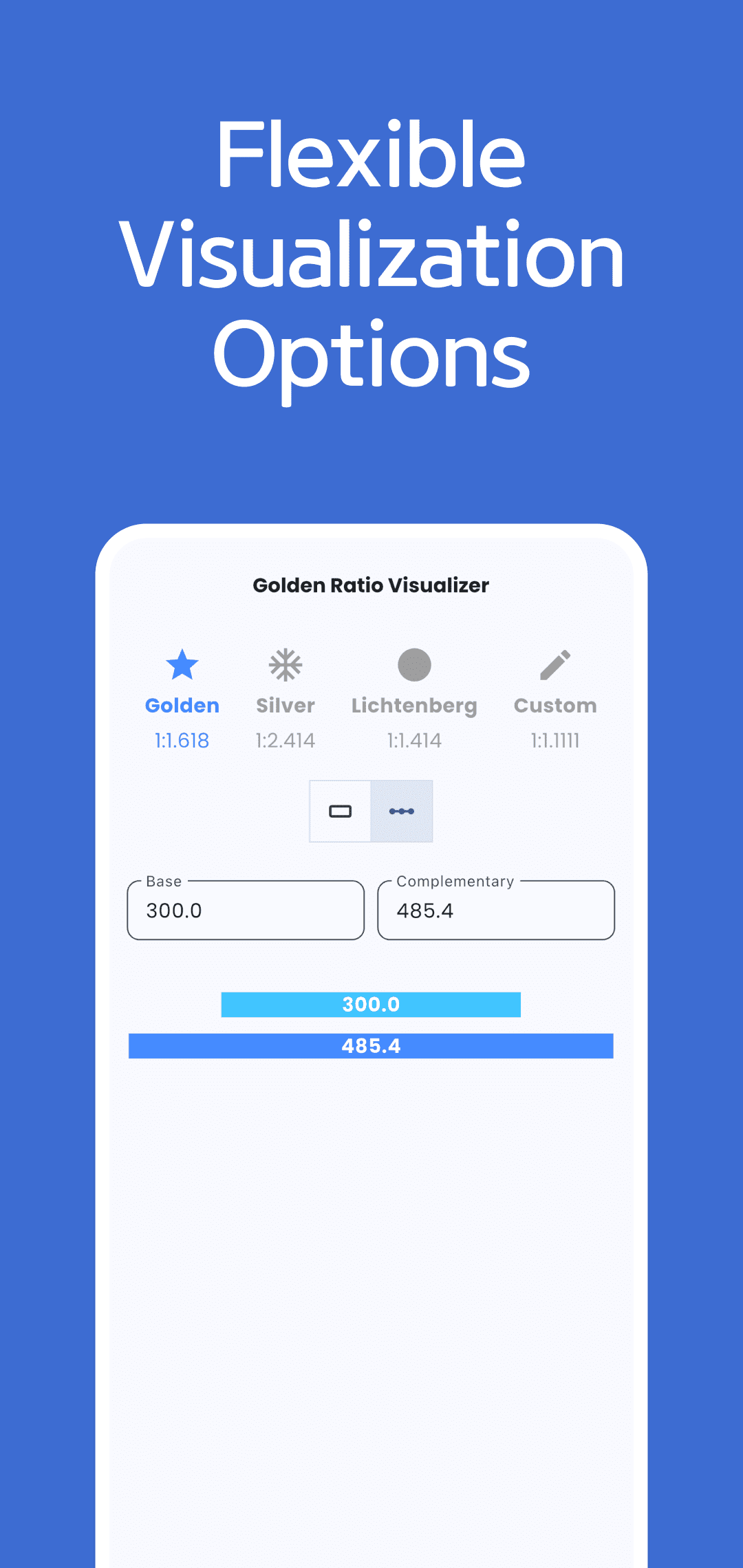
1:2, enter2, rather than the text1:2or two separate side lengths. - Switch between the rectangle and line icons, compare the numeric fields with the diagram labels, and keep a separate note of results you need later.
Presets and a custom example
The app uses fixed three-decimal approximations for its preset ratios. Treat them as these stored values rather than an unlimited-precision calculation of the mathematical constants. Read the selected ratio as Base:Complementary = 1:ratio value.
| Selection | Value used by the app | Complementary when Base is 300 |
|---|---|---|
| Golden | 1.618 | 485.4 |
| Silver | 2.414 | 724.2 |
| Lichtenberg | 1.414 | 424.2 |
| Custom | Your positive multiplier | Enter 2 for 600.0 |
With Custom Ratio = 2 and Base = 300, Complementary is 600. Change Complementary to 900 and Base becomes 450. This does not divide a total into two additive parts of 300 and 600.
There is no unit selector. If you interpret the values as px, mm or another unit, use the same unit for both. The app does not import and crop photos or overlay a golden spiral or grid on an image.
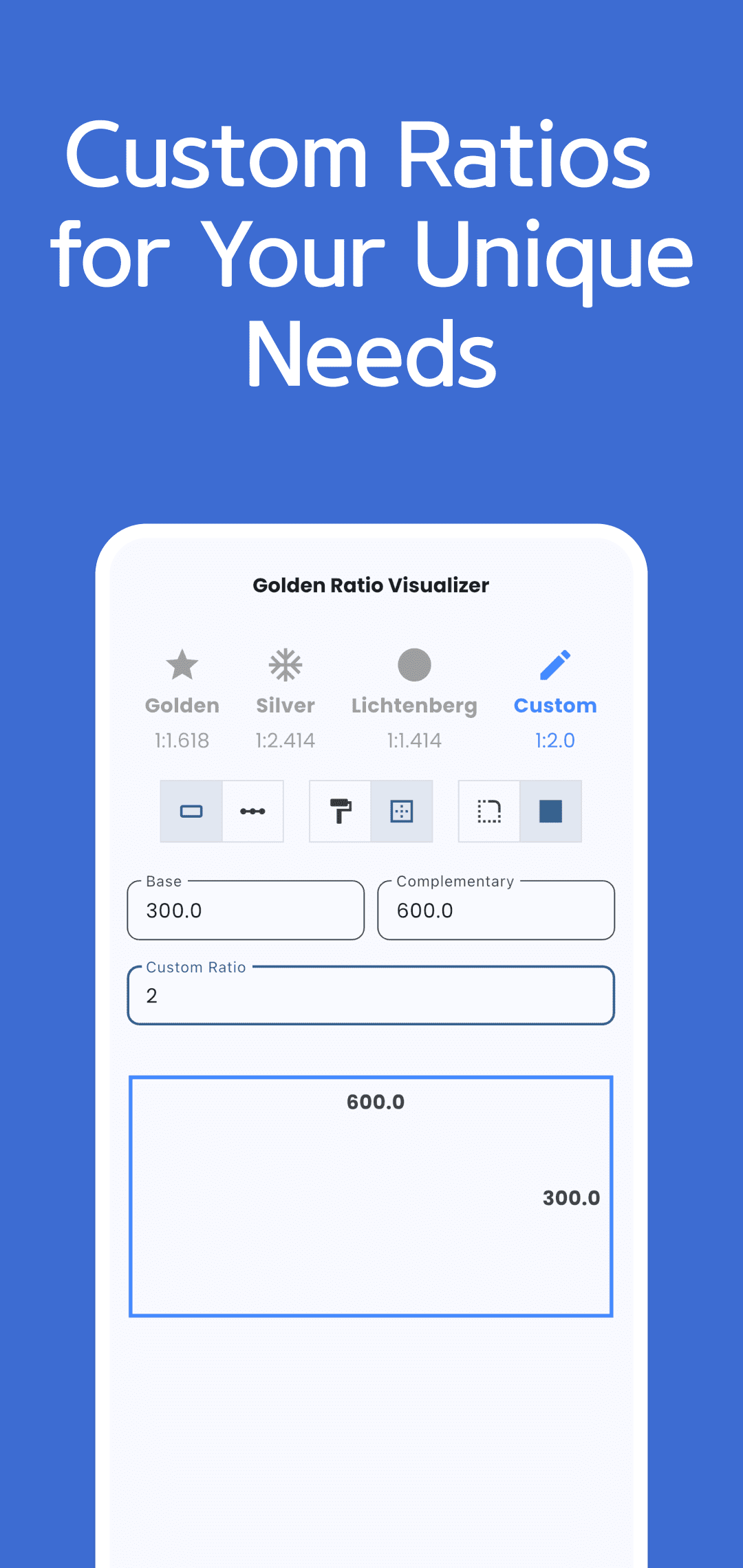
Diagram controls and scale
The rectangle icon shows the two dimensions as width and height. The line icon compares them as two horizontal lengths. In rectangle mode, choose fill/outline and rounded/square corners. Rounded corners use a fixed radius setting; there is no numeric radius editor. These controls do not change the calculation ratio.
The diagram scales to fit the screen. A Base value of 300 is not drawn as a physical 300px or 300mm length. Use the numeric results when transferring dimensions into your work, rather than measuring the on-screen shape.
Input, rounding and keeping results
The opposite field updated by calculation and the diagram labels display one decimal place. A field you edit directly can retain your entered text, so the fields may show different numbers of decimal places. For example, entering Base 1.25 with Golden calculates 2.0225 but displays 2.0. Clearing and retyping that rounded result for reverse calculation may not recover the original 1.25 exactly.
Enter positive finite numbers and use . for decimals. Empty, zero, negative or unrecognized input can fall back to internal values rather than stop with a validation error: 1 for Base or Complementary, and 1.5 for Custom Ratio. The original input text can remain visible. After clearing a field, finish entering a positive value and check both results again. Very large or small values and keyboard behavior need checking on your device.
The app does not save calculation values, selected ratios or diagram options as records, load previous calculations, or export images or CSV. A new calculation screen can start from its defaults. Keep a separate note of important values and their multiplier.
Check availability, device compatibility and advertising information on Google Play and the App Store, also linked in the shared download area below. This guide explains the controls and displayed values without promising a particular design outcome.
For problems, use Support and read the Privacy Policy. Include your device, app version, selected ratio, both input values, Custom Ratio if applicable, and the affected screen.