

Shift Calendar & Work Rota stores a repeating work pattern and changes for individual dates on your device. Set shift types, their sequence and a start date, then use the calendar to record exceptions. The app supports English and Korean without a separate app account.
Monthly hours and pay are schedule projections calculated with your current settings. The app does not detect clock-ins, clock-outs or completed work. Keep the planned rota separate from an attendance record.
First setup: types, sequence and first-item date
Review the introduction and any regional advertising consent screen. Select a preset or Create Custom.
- Create Shift Types: check names, colours, work-day flags and optional start/end times against your actual roster.
- Rotation order: add one item for each day in the cycle. Add Day twice for two day shifts. Add, remove or drag items into order.
- Start date: choose the date on which the first sequence item applies, check the preview, then complete setup. This saves and activates the initial pattern.
For Day → Night → Off starting 2026-10-01, October 1 is Day, 2 is Night, 3 is Off and 4 repeats Day. Dates before the start have no pattern-generated shift. Match the date to the first item rather than simply choosing today.
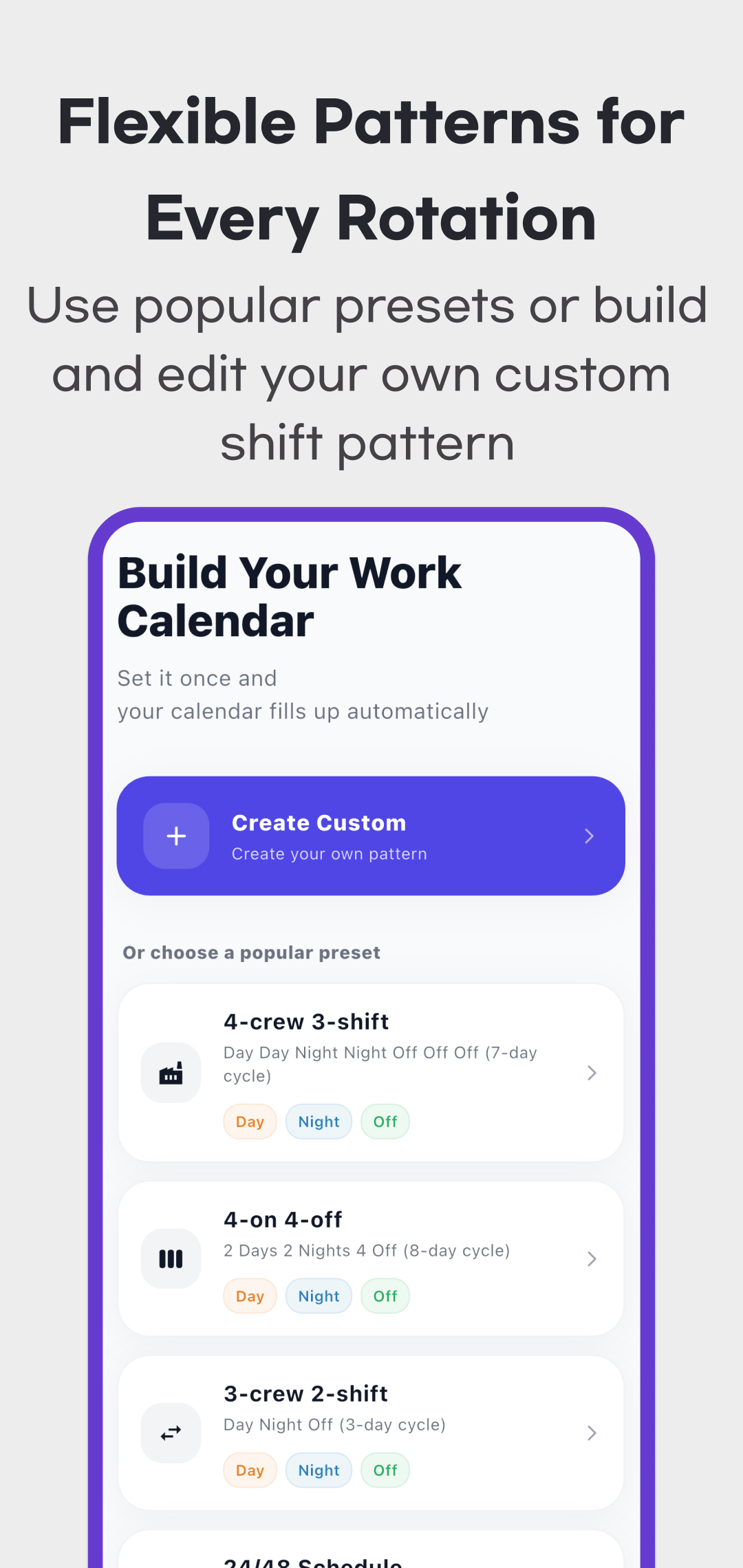
The seven presets are 4-crew 3-shift (Day Day Night Night Off Off Off), 4-on 4-off (two Days, two Nights, four Off), 3-crew 2-shift (Day Night Off), 24/48 (24h Shift Off Off), 2-shift (Day Night), Alternate Day (Work Rest), and Weekday Fixed (five Work, two Weekend). Verify the sequence and times rather than relying on its name.
Weekday Fixed still repeats from its chosen start. Align its first Work item with Monday for a Monday–Friday rota. Changing Week Start Day changes the calendar layout, not the pattern's start-date alignment.
Edit types; save and activate patterns separately
Open Settings → Shift Type Management, select a type, edit its name, colour, work-day flag, times, break minutes and hourly rate, then Save. The work-day flag controls work-day totals. Hours also require time settings; pay requires a work-day flag, times and a positive rate. Names such as Vacation or Training do not determine paid status automatically.
Reopen the type to check saved rate and break values. In the reviewed version, clearing an existing value to an empty field can leave the old value in place. Enter 0 explicitly for no break deduction or to disable rate-based pay, then verify the result. Keep break minutes within the shift's elapsed time.
Use Settings → Pattern Management → + to save a named sequence and start date. Saving a new pattern does not activate it. Reopen the saved pattern and select Set as active. Several patterns can be stored, with one active at a time. Changing an active pattern's sequence or start recalculates earlier and future dates too.
Save a date change or restore its pattern
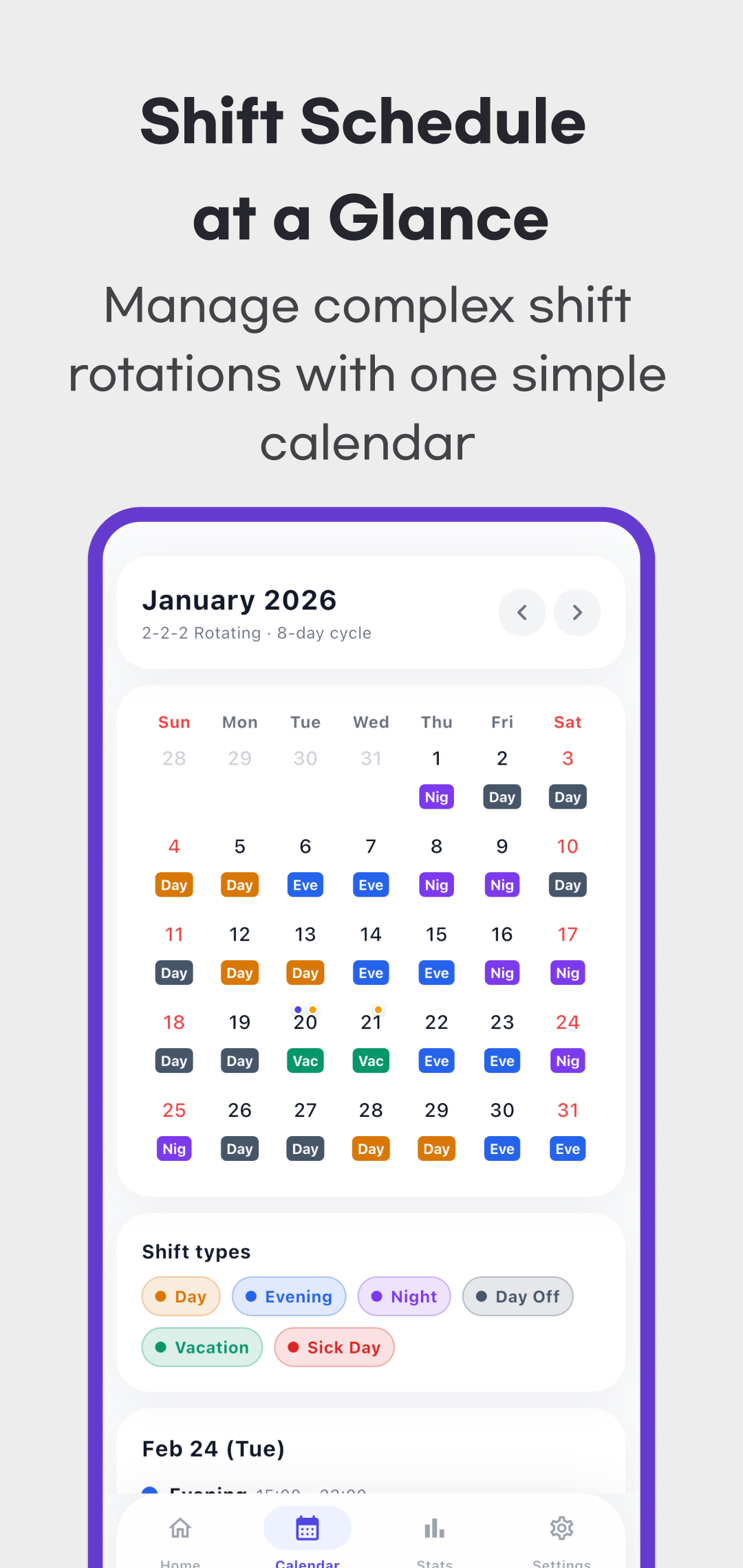
- Select a date in Calendar.
- Open Day Detail in the lower date card.
- Choose a type, enter a memo, then Save. Selection alone or closing the sheet does not save those edits.
A saved date override takes priority over the pattern. Switching the active pattern retains date overrides and memos, so review old exceptions when changing rota.
In the reviewed day-detail screen, saving only a memo also pins the current shift type as a manual override. If a date does not follow a later pattern change, check its manual-change label. Restore Pattern removes that date's type override and follows the current pattern while retaining its already-saved memo. Restoration closes the sheet and does not save newly typed memo text; save it first if needed.
Read monthly hours and estimated pay
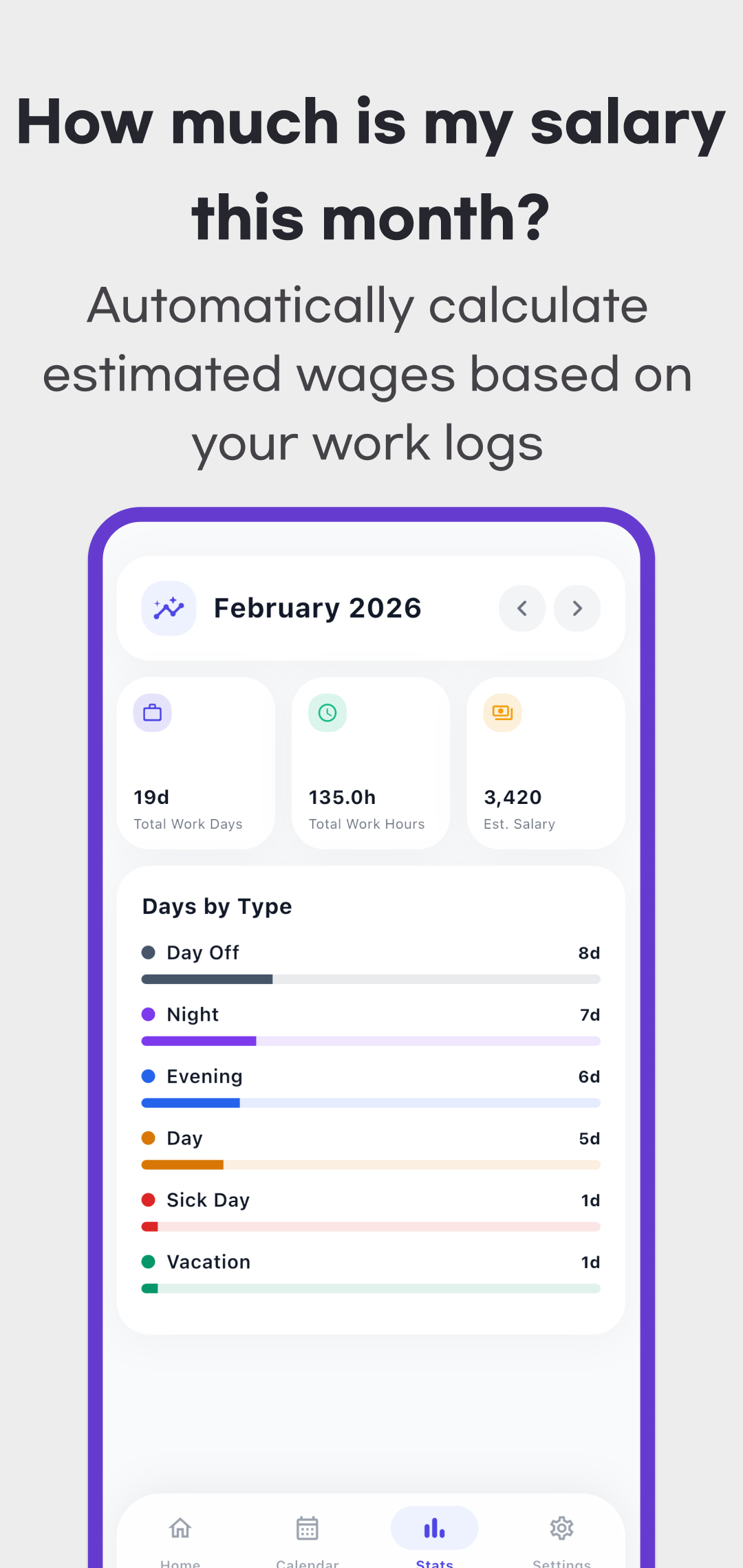
Select the month in Statistics. Totals cover the entire selected month, including future scheduled dates. One shift type is applied per date. An overnight shift's full duration is assigned to its start date: a shift starting October 31 and ending November 1 is counted entirely in October.
The calculation is time interval − entered break, then that duration × the type's current hourly rate. An earlier end is treated as the next day. Equal start and end times mean 24 hours. An excessive break can produce negative hours, so check input values.
| Type and count | Times, break and rate | Hours and estimated amount |
|---|---|---|
| Two Day shifts | 09:00–18:00, 60-minute break, rate 15 | 8 × 2 = 16 hours; amount 240 |
| One Night shift | 22:00–06:00 next day, 30-minute break, rate 18 | 7.5 hours; amount 135 |
| Total | Three dates marked as work days | 23.5 hours; amount 375 |
Amounts use the same currency unit as the entered rates; the app does not convert currencies. It does not automatically calculate overtime/night/holiday premiums, taxes, deductions or a salaried payroll. Entering different type rates remains your own estimate. Changing type times, breaks, rates or the active pattern recalculates historical monthly totals using current settings; it does not preserve a fixed record of past pay.
Deletion, device storage and support
Type and pattern deletion require confirmation. Deleting an active pattern clears its active selection. Deleting a type also removes its items from saved pattern sequences, which can shorten a cycle; an empty pattern is deleted. Existing date overrides can still point to the removed type. Review affected dates, restore their pattern and select a valid type when needed. Consider editing first when you only need a new name or rate.
Types, patterns, date changes, memos and settings are stored on the device. The reviewed app has no app account, cloud sync, app-provided backup/restore, CSV/PDF or external-calendar export, or shift notification feature. Do not assume automatic recovery after uninstalling or changing phones; operating-system backup depends on separate settings.
The app includes banner and interstitial ads. An interstitial can appear when saving types/patterns, activating a pattern or navigating months. Local schedule storage does not establish that advertising SDKs collect or share no data. Read the privacy policy and store disclosures together. Install through this page's official download area, or contact support with your app version, operating system and pattern/date-change steps for a discrepancy.
For a quick check of one entered interval, use the DayMeasure Work Hours Calculator. Keep actual attendance and payroll evidence separate from the planned rota.