
Sleep Diary & Bedtime Tracker lets you enter bedtime, waking time and naps, then revisit saved entries in the calendar and statistics. It is a manual sleep journal: the times, ratings and notes come from you.
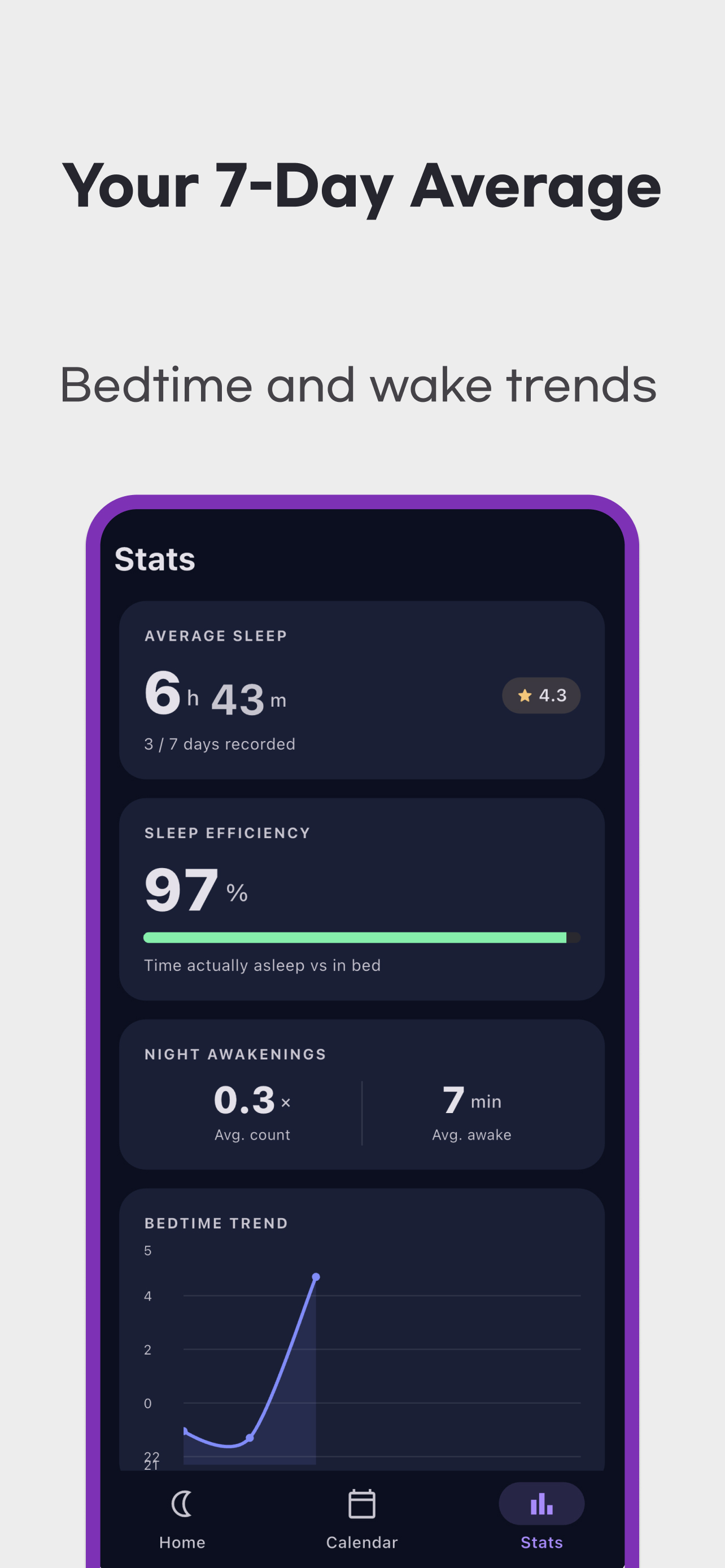
The images below are earlier promotional screenshots with sample data from May 2026. Layout and labels can differ from the current app. Their figures and “30 seconds” wording do not guarantee a result or an entry time for every user.
Record one night of sleep
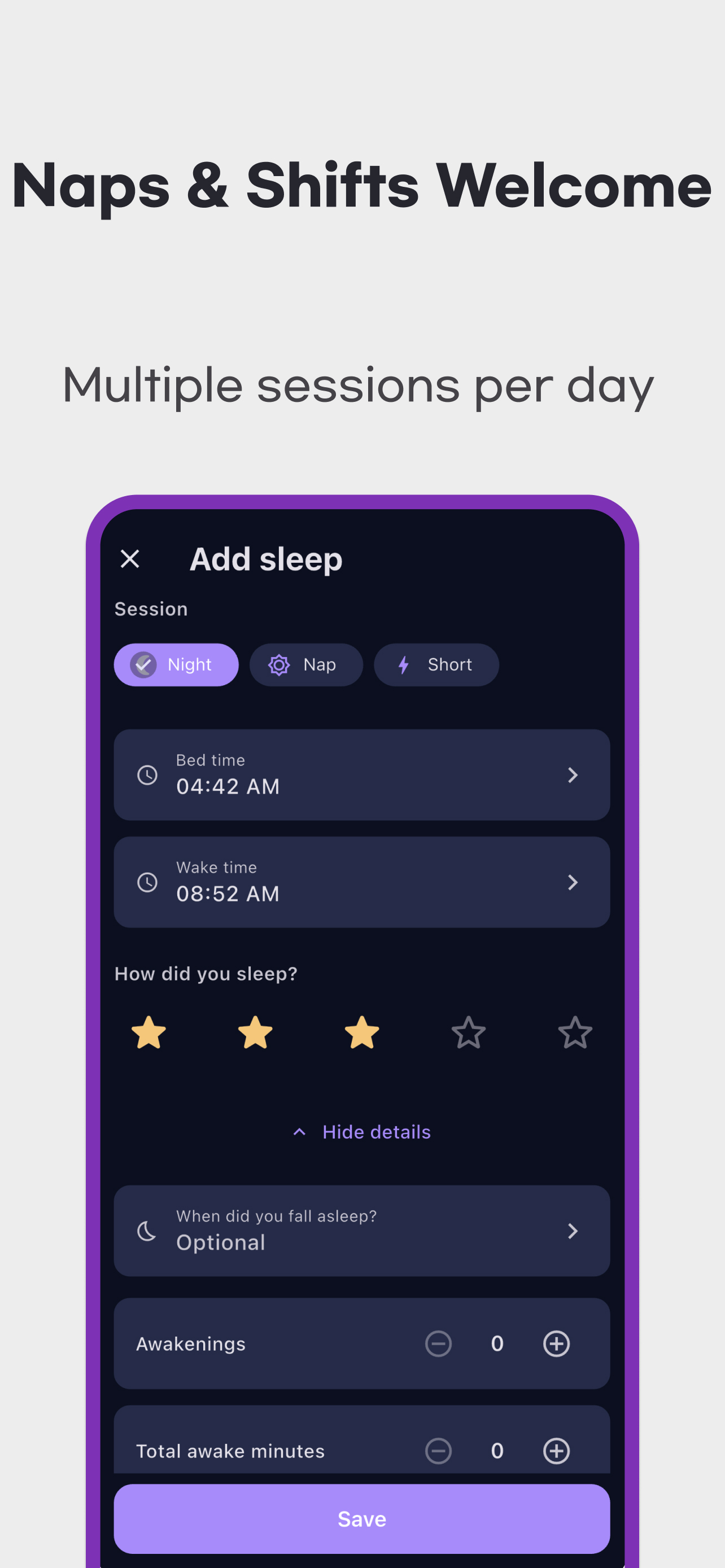
- In Calendar, select the date you want to record and choose Add a record. Keeping a night under its waking date makes an overnight entry easier to find.
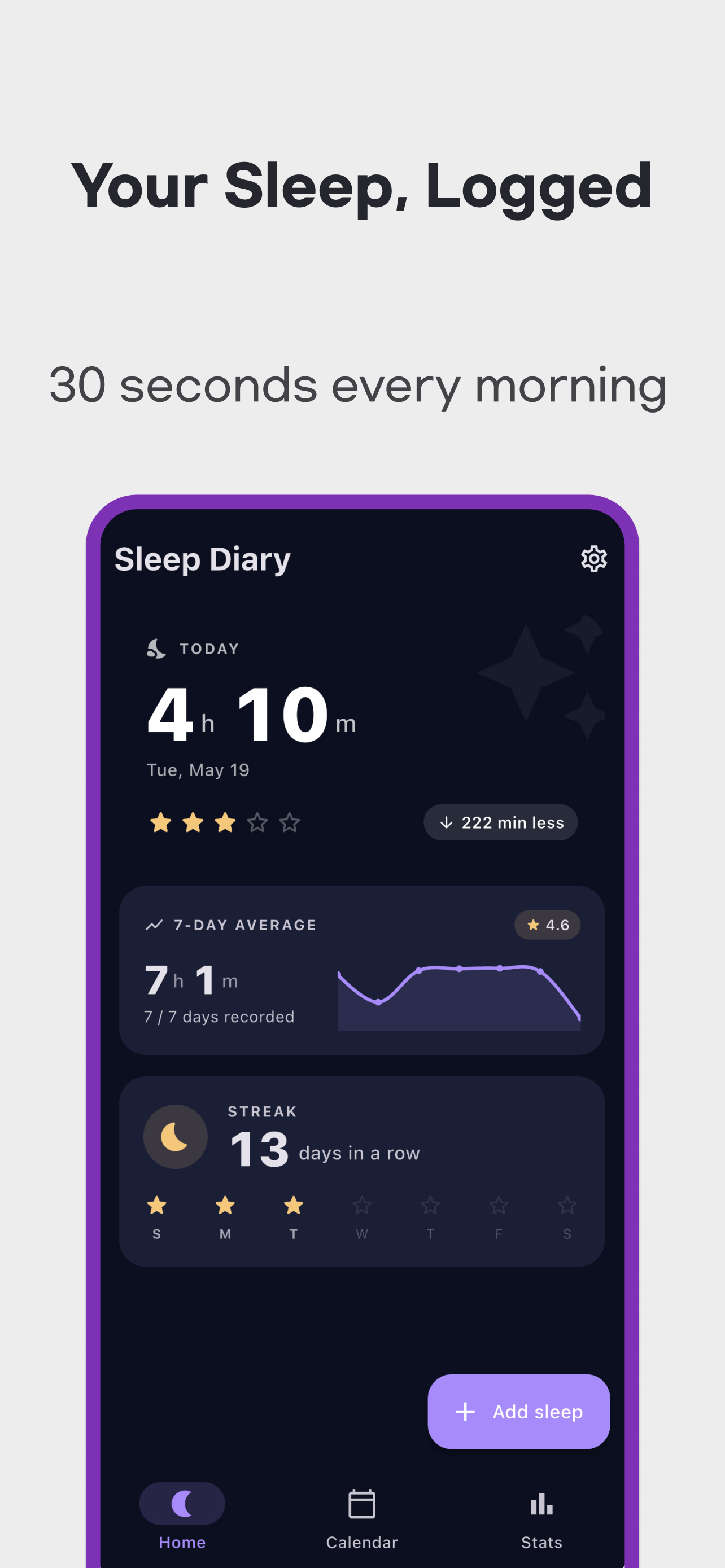
- Select Night, then enter Bed time and Wake time. For an overnight session, check the dates as well as the times.
- Under How did you sleep?, choose your own rating from 1 to 5.
- Open More details if you want to add when you fell asleep, awakenings, total awake minutes, factors or notes. Save the entry.
If you start with Add sleep on the home screen, also check the selected recording date. Its default can depend on when you open the form. A recent entry of the same session type can supply suggested times, so review them before saving.
Time in bed and estimated sleep are different
For a night recorded under October 2, enter the fictional example below. These times show how the fields affect the calculation.
| Field | Example input or result |
|---|---|
| Recording date and session | October 2, 2026 · Night |
| Bed time | October 1 at 23:00 |
| When you fell asleep | October 1 at 23:30 |
| Wake time | October 2 at 07:00 |
| Total awake minutes | 20 minutes |
| Time in bed | 8 hours |
| Estimated sleep from these inputs | 7 hours 10 minutes |
Time in bed is 07:00 − 23:00 on the previous day = 8 hours. Because you entered a sleep-onset time, estimated sleep is 07:00 − 23:30 on the previous day − 20 minutes = 7 hours 10 minutes.
If you leave the sleep-onset field blank, the calculation starts at bed time. With the same other values, that produces 8 hours − 20 minutes = 7 hours 40 minutes. The number of awakenings is a separate field: entering a count does not automatically subtract awake minutes.
These are estimates calculated from your entries. The app does not use sensors to automatically measure sleep onset, waking or sleep stages. Your star rating is a personal assessment, rather than a diagnostic score.
Add a nap or correct an existing entry
For the same October 2 date, add a separate Nap from 13:30 to 14:00, leaving sleep onset blank and awake minutes at zero. The nap contributes 30 minutes, bringing that date's combined night-and-nap total to 7 hours 40 minutes. Add split sessions separately, taking care not to enter overlapping time twice.
To correct a saved entry, open Calendar → date → entry, change the values and save. If the first night's actual wake time was 06:30, edit that existing entry. Keeping sleep onset at 23:30 and awake minutes at 20 changes the night to 6 hours 40 minutes, and the date's total including the nap to 7 hours 10 minutes. Adding a second copy of the night can cause both to be counted.
Read the seven-day average and period statistics
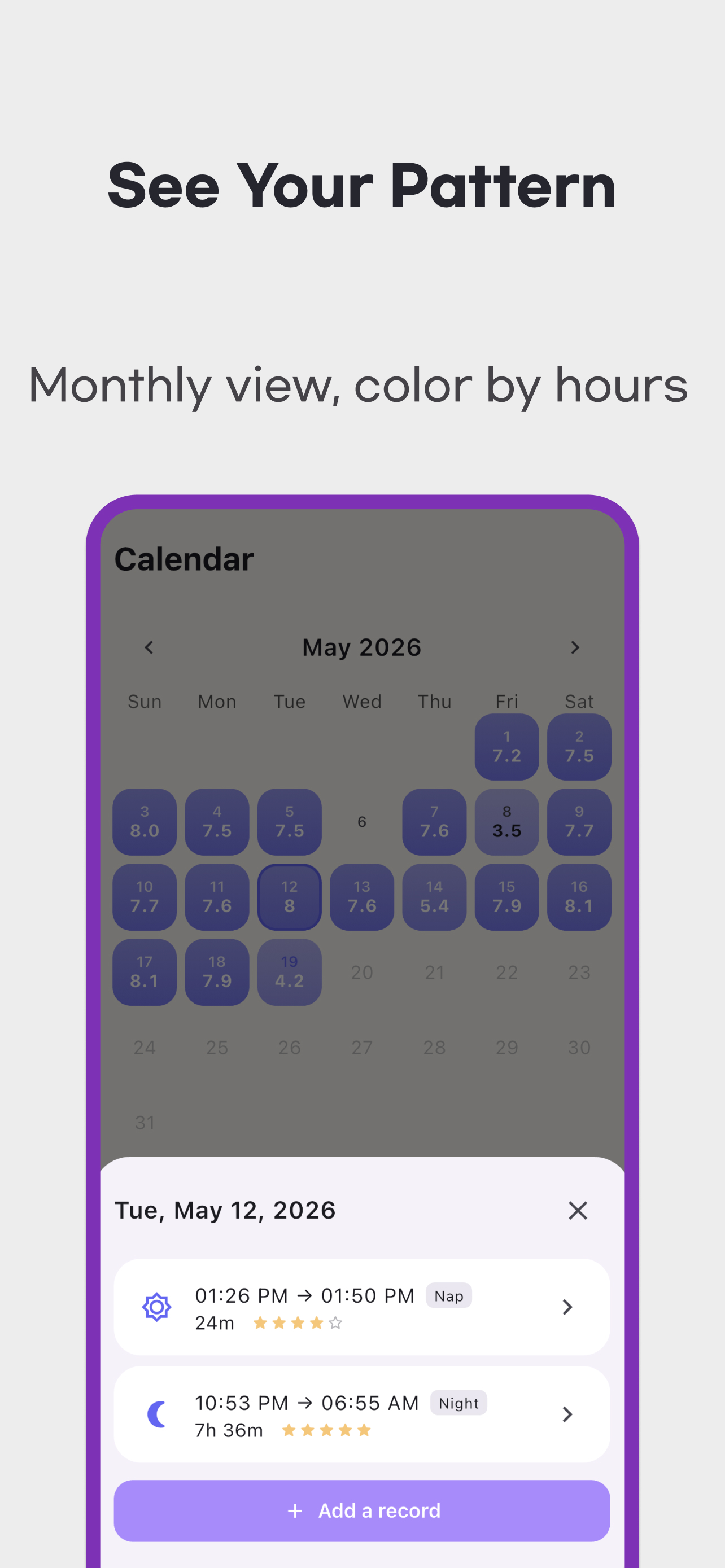
The home screen's 7-day average covers the last seven days including today. In Stats, select Week or Month and check the displayed period. Your week-start setting can change the weekly range.
The app first sums all night, nap and short sessions for each recording date, then divides by the number of dates with entries. Missing days are excluded rather than counted as zero sleep.
If the selected period contains only the original October 2 total of 7 hours 40 minutes and an October 3 entry of 8 hours, the average is (460 + 480) ÷ 2 = 470 minutes, or 7 hours 50 minutes. After changing the first night's wake time to 06:30, it becomes (430 + 480) ÷ 2 = 455 minutes, or 7 hours 35 minutes. If those are your only recorded dates in the recent seven-day window, the recorded-day count is 2/7.
Read the recorded-day count alongside an average. A few entered dates describe a different sample from a complete week. Sleep efficiency and night-awakening summaries also depend on your entries; calendar colors and charts do not diagnose a sleep disorder.
Which records count toward sleep efficiency?
In version 1.2.0, the efficiency average includes night records with a valid sleep-onset time or more than zero awake minutes. A basic bed-and-wake-only record, a nap or a short session can still contribute to average sleep duration, but is excluded from this efficiency average. If no eligible night records exist in the selected period, the card asks for more detail instead of treating basic records as 100% efficient.
For each eligible night, the app divides estimated sleep by time in bed. The period figure averages those individual night percentages, so its sample differs from the recorded-date average duration explained above. It remains an estimate from your manual entries.
Add and manage your own sleep factors
In Settings → Manage sleep factors, use Add factor to create an item you want to record, such as reading or a late commute. Select it when entering a sleep record. You can rename a custom factor; the new name also appears on earlier records that use it. Add a separate factor if you mean a different activity.
Hide an item you no longer want in the picker, or restore it from the hidden list. Hiding preserves its earlier records and statistics. The factor chart counts sessions containing each item within the selected period, including past references to hidden items. It shows recording frequency, rather than proving that a factor caused a sleep change.
Reminders and stored data
In Settings → Daily reminder, enable the reminder and choose its time. Allow notifications and use the test notification to check delivery. The reminder prompts you to record; it does not measure when you sleep or wake.
Sleep entries are stored on the device, and you can add and review them without an internet connection. The app also has advertising and usage analytics, so offline record keeping does not mean that every kind of app information stays off external services. Read the privacy policy and the store's privacy information for data-handling details.
The current app has no dedicated export-and-restore menu for transferring records between devices. Do not assume that entries will automatically return after changing devices, and review your records before using Delete all data. For help using the app, contact support. This is a record-keeping app and does not provide medical diagnosis or treatment.