
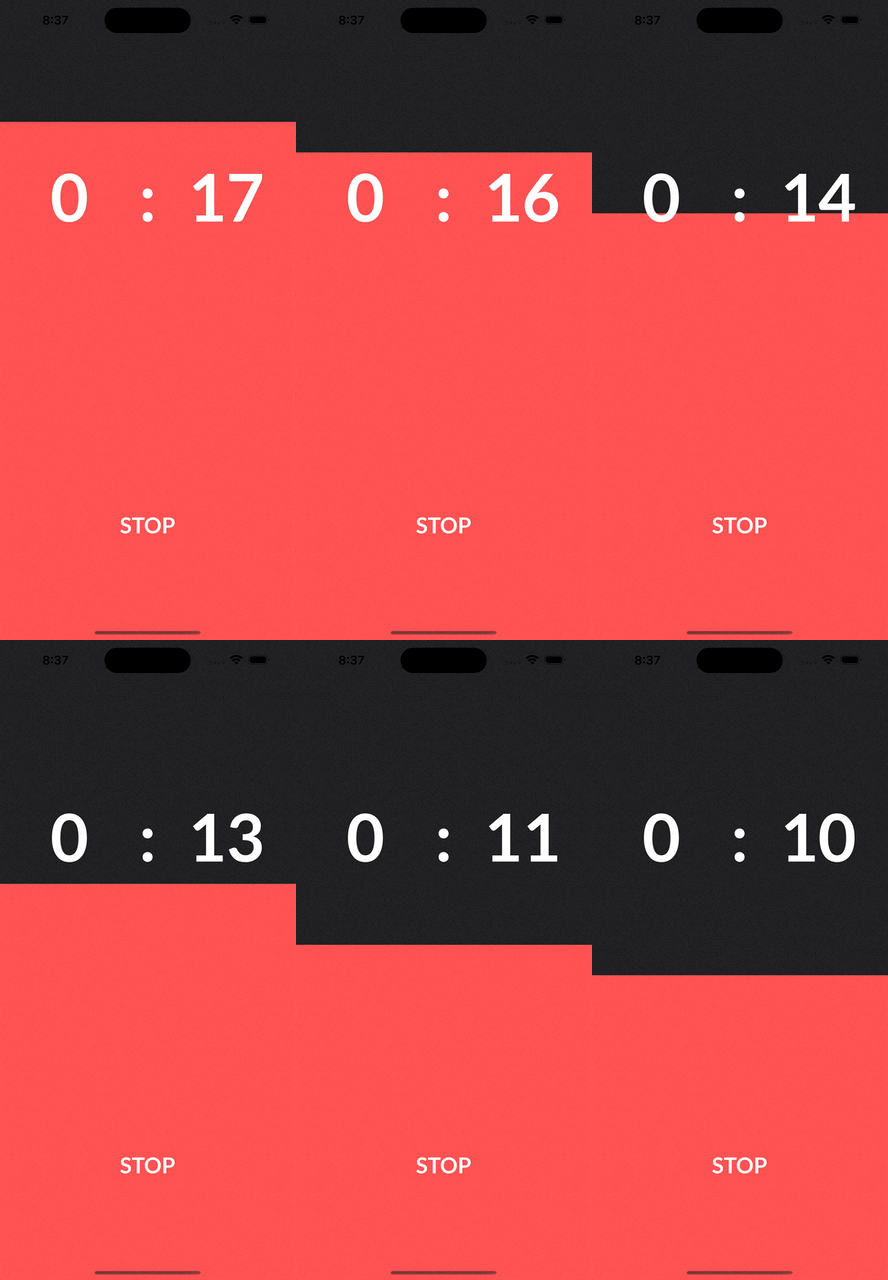
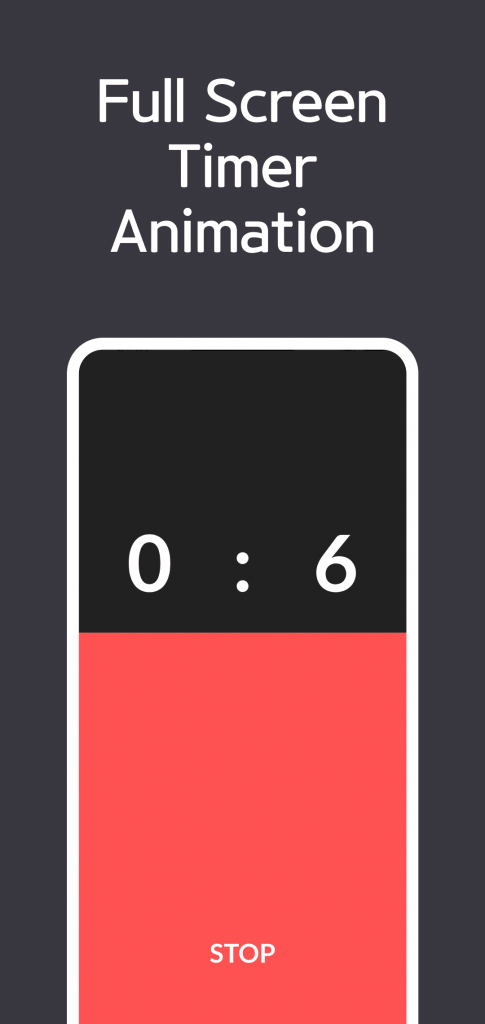
Color Timer shows a countdown as large minutes:seconds digits and a full-screen colored area. Choose a duration and select START: the filled area shrinks with the remaining time. The current screen has no time-of-day clock or elapsed-time stopwatch mode.
This guide compares the current source with public 1.2.0 information. You can use the countdown to watch a chosen study, workout or cooking interval. Theme names do not establish improvements in concentration, fitness or other outcomes.
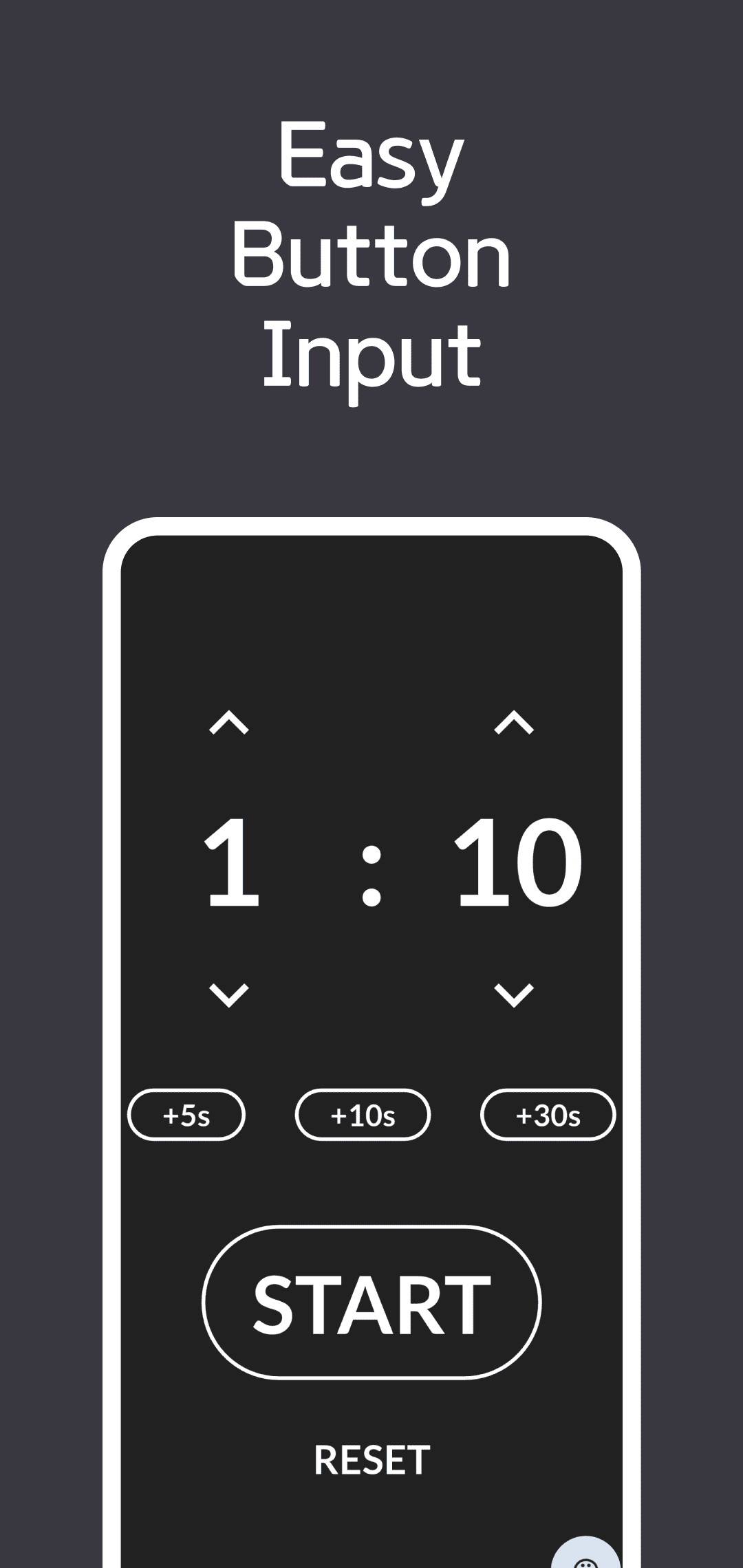
Set a duration and start
- While stopped, tap the large digits or clock icon to open Set Timer.
- Use the Minutes and Seconds wheels. Minutes range from 0–600 and seconds from 0–59. The largest wheel combination is 600 minutes 59 seconds, displayed as
600:59without switching to hours. - Select Done to apply or Cancel to close. With no saved duration, the initial value is
00:00. Zero can be entered, but START begins only with a positive duration. - Alternatively, use +5s, +10s, +30s, +1m, +5m or +10m to add to the current input. These buttons add time; they do not replace the input with a preset. For example, +1m followed by +5s produces
01:05. - Check the value and select START. Time-add, start and settings controls become hidden while STOP remains. Stop the countdown before changing the time, theme or alarm sound.
How STOP and RESET differ
| Control | Current behavior |
|---|---|
| Digits or clock icon | Opens minute-second wheels while stopped; blocked during a run. |
| Time-add buttons | Add to the chosen duration rather than replacing it. |
| START | Starts a new countdown from the full input duration. |
| STOP during a run | Stops countdown and repeating audio, then shows the input duration again. |
| RESET after stopping | Clears the minute-second input to zero. |
| Settings gear | Opens theme and alarm-sound choices while stopped. |
STOP does not pause and preserve the remaining time. Start at 01:05, stop at 01:04, and the screen returns to 01:05. The next START begins from that full duration. RESET then clears the input to 00:00.
At completion, 00:00 and STOP remain so you can stop the sound. The current screen has no automatic interval sequence, lap list or session export. If you need pause and resume from the remaining value, compare the controls in the Big Timer guide.
Quick-add buttons and input limits
The seconds buttons add 5, 10 or 30 seconds. The minutes buttons add 1, 5 or 10 minutes. Check the final digits after adding time. Unlike the wheel's 600-minute range, the current addition logic does not apply that same upper limit, so 600 minutes is not described as an app-wide maximum.
During a run, use the visible remaining time and STOP. Stop before changing the duration. Tapping the location of a hidden time-add button can still change the target input in the current implementation, so check the displayed target before restarting after STOP.
Choose a theme and alarm sound in Settings
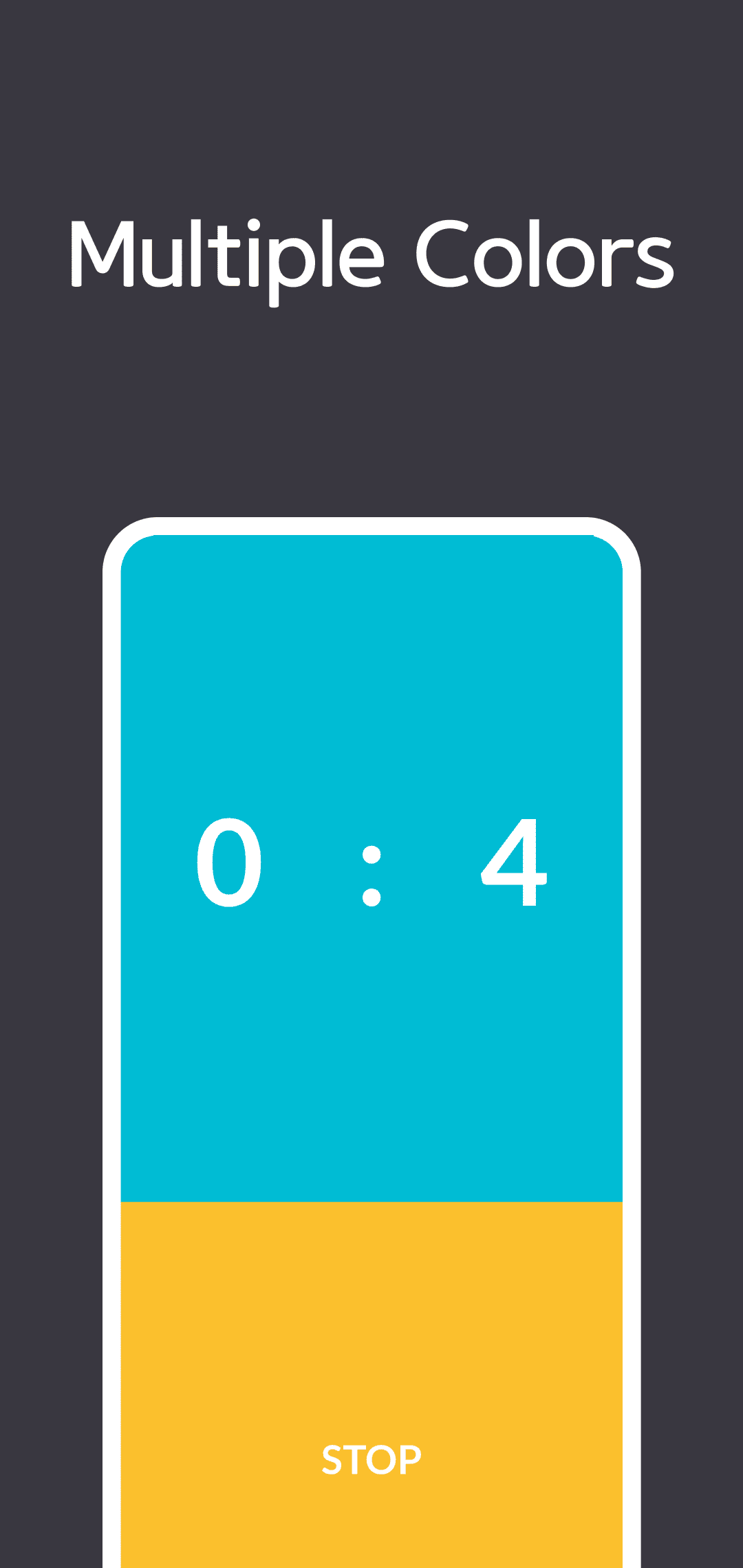
While stopped, select the Settings gear. Theme currently offers 18 choices, including Fire Red, Ocean Blue, Focus Black, Creative Flow, Forest Green, Pure White and Warm Earth. Energetic, Calm, Focus, Creative and Nature categorize the colors; they are not separate timer functions or validated benefits.
Alarm Sound offers 8 choices: Classic Beep, Soft Beep, Digital Alarm, Simple Notification, Gentle Chime, Bright Alert, Crystal Bell and Warm Tone. The play icon previews a sound. Selecting its row chooses the completion sound. Confirm the check mark and use the back arrow to return to the timer. Previewing alone does not change the selected alarm.
The current implementation repeatedly requests playback of the chosen sound on completion. Check actual audio, volume and behavior when the app is out of view on your installed version and device. Try a short countdown first. STOP cancels the repeating playback requests.
Saved settings, screen retention and timing limits
Minute-second input, theme and chosen alarm sound use local storage. The active remaining time and session history are not saved. Preparing the screen again shows the saved target; it does not automatically resume from an interrupted remaining value.
The current source requests screen retention at app startup and prepares portrait orientation. STOP alone does not turn that request off, and this screen has no screen-retention switch. Check actual screen behavior and layout on your operating system, device and installed version.
A display updated in seconds is distinct from measurement accuracy. As the Dart periodic timer documentation explains, callback spacing can vary. This guide does not promise scheduled alarms after the app closes or alerts at a precisely calibrated instant.
Installation, advertising, privacy and support
Use the shared download section below to visit Google Play or the App Store. The current source includes loading and app-open advertising flows, and the stores disclose advertising and data practices. Android source declares the advertising ID permission, so the previous blanket no permissions required description is not retained. Check platform and installed-version notices for actual system requests and data handling.
If settings or controls differ, contact support with your device, operating system, app version, chosen duration and START/STOP/RESET sequence. Review the privacy policy and current store privacy disclosures as well.