
Minimal Full Timer shows large digits in three modes: Clock for the current time, Countdown for a duration you set, and Stopwatch for elapsed time. Tap the display to open the controls and change the mode, duration or display settings.
The earlier description of a stopwatch with millisecond accuracy needs qualification. In current source, Show Milliseconds displays one fractional digit, or 0.1 seconds, when a countdown or stopwatch value is one minute or less. 0.1 seconds is 100ms. This does not establish a 1ms display or measurement accuracy.
Open the controls and switch modes
- Tap the large-digit display to reveal the controls.
- The CLOCK, COUNTDOWN or STOPWATCH indicator names the current mode.
- The mode button names the next mode: Countdown in Clock, Stopwatch in Countdown, and Clock in Stopwatch.
- Press it until you reach the mode you need. The cycle is Clock → Countdown → Stopwatch → Clock.
- Copy any elapsed result you need before switching. A switch stops the session and sets up the next mode; it does not preserve a running stopwatch session.
Clock shows the device's current hours, minutes and seconds. It is not presented here as an external reference-clock synchronization or manual offset feature. While running, controls normally hide after about two seconds; tap again to reveal them. They initially remain visible while you choose an idle duration, but can hide again after a settings or time dialog closes.
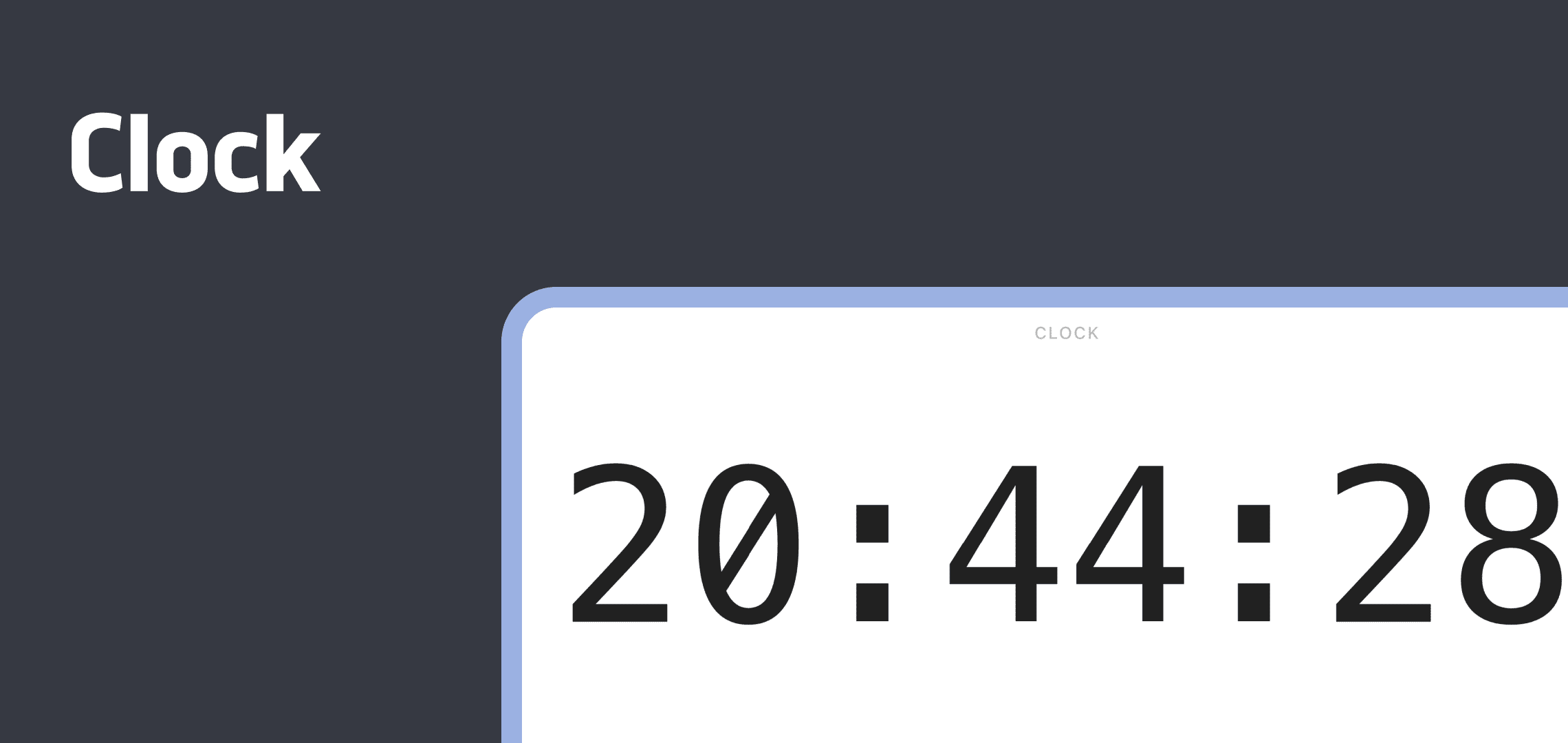
Set Countdown and use Start, Pause, Resume and Stop
| Control | What it does | Check |
|---|---|---|
| Quick Presets | Replaces the target with 1m, 5m, 10m or 25m. | 1m followed by 5m makes five minutes, not six. |
| Custom Time | Choose Hours, Minutes and Seconds in Set Custom Time. | Apply with Set Timer; there is no fractional-duration input. |
| Start | Starts the duration, or starts the same target again after completion. | Completion shows green 00:00 digits. |
| Pause → Resume | Stops and continues progress. | This retains progress, unlike Stop. |
| Stop | Ends progress and restores the target duration. | It resets rather than pauses, and appears while running or paused. |
In idle Countdown, choose Quick Presets or Custom Time. Without a saved value, the app prepares five minutes. The custom dialog opens at zero hours, five minutes and zero seconds, so check the selected value before applying it. The picker reaches 23:59:59 and requires a duration greater than zero. Press Set Timer to apply it or Cancel to close the dialog.
While running or paused, use Stop to reset before changing the duration. At completion, the app requests sound and vibration if Sound Alerts and Vibration are enabled in Settings. A guaranteed alert after the app closes, an alert within a specified timing error or a safety-critical warning has not been verified here.
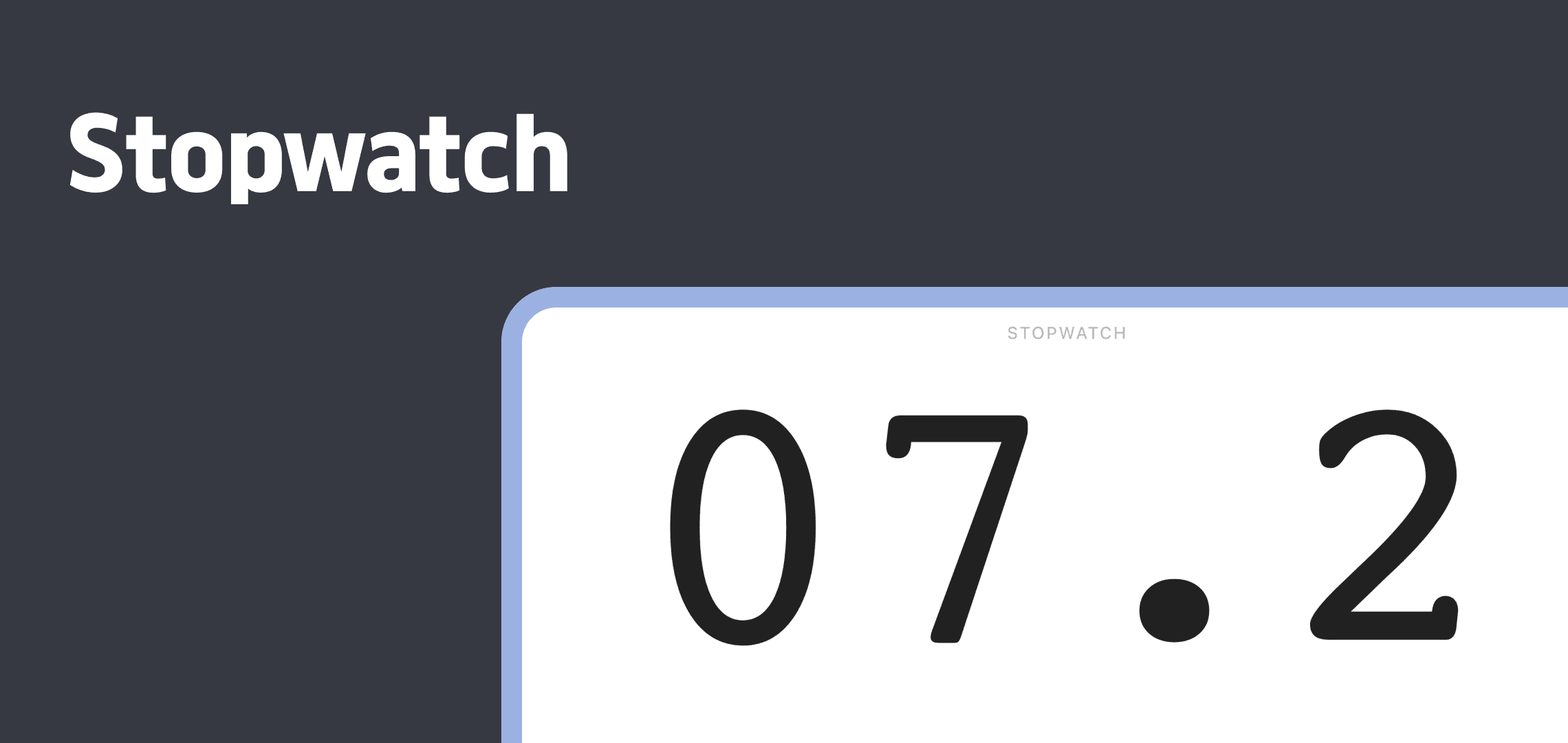
Read Stopwatch elapsed time
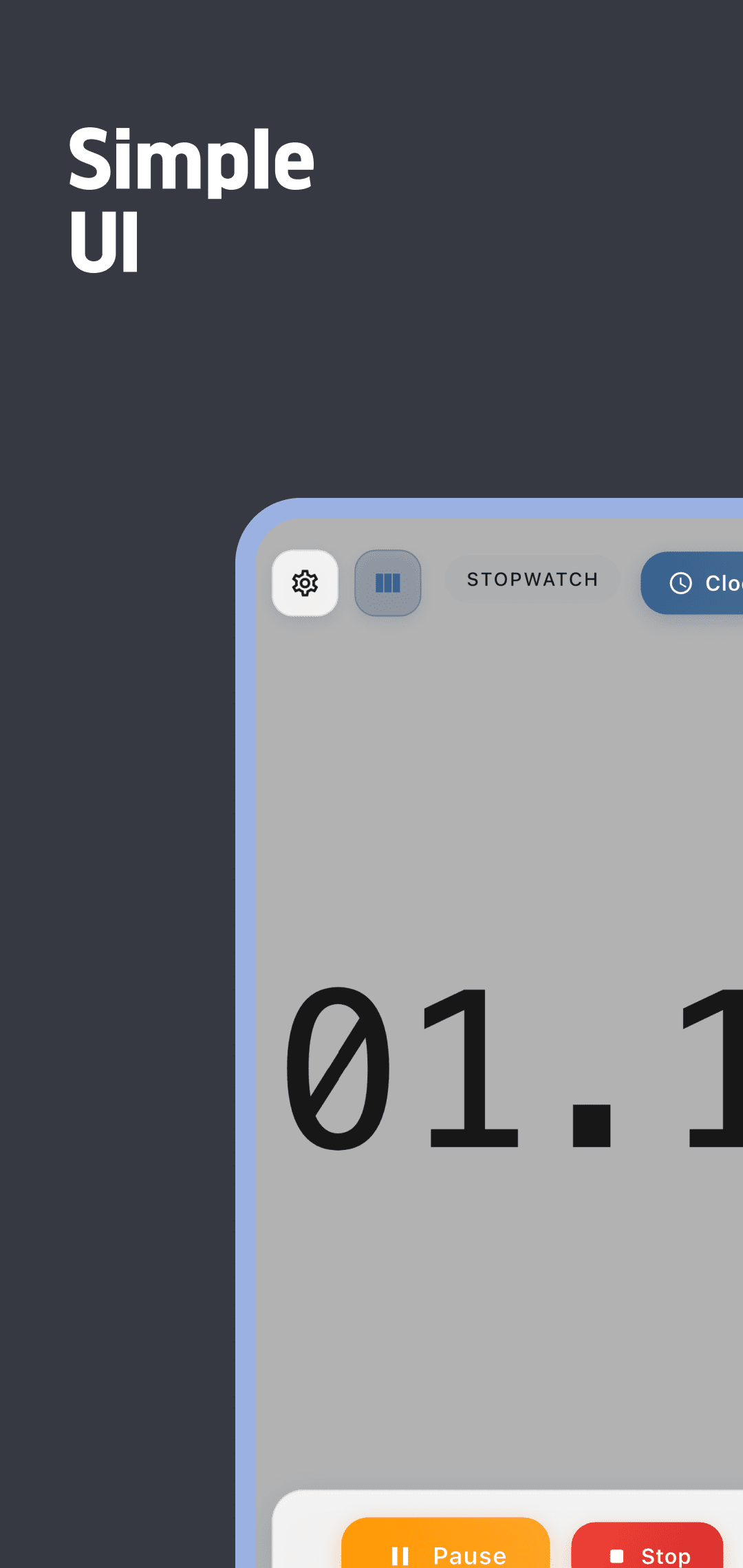
Use Start, then Pause → Resume to stop and continue. Stop resets elapsed time to zero. The current screen has no lap list or session export, so retain any result before resetting or switching modes.
With fractional display enabled, values of one minute or less appear like 07.2. Above one minute the display uses minutes and seconds; at an hour or more it includes hours. These digits do not establish the error of a manual button press or device measurement performance.
Display settings and what returns on reopening
The gear opens Settings with Sound Alerts, Vibration, Always On Display, Timer Animations, Show Milliseconds and Font Style. Font Style has Modern (Courier) and Classic (Monospace), rather than three dedicated font options. Current app themes follow the system's light or dark preference.
The adjacent line-layout icon selects vertically stacked time components. Enabling Show Milliseconds selects the single-line display even when vertical layout is saved. Stacking the digits and rotating the device to landscape are separate choices. Source supports portrait and landscape; check actual screen size, font rendering and viewing distance on your installed version.
Always On Display requests an awake screen. Current setup can request it before timing starts; Pause, completion and disposal have paths that release it. Device screen retention and operating-system battery conditions are not guaranteed.
The app uses local storage for settings, the last mode and the last Countdown target. That does not mean it restores a countdown's remaining progress or a stopwatch session. On reopening, Countdown prepares its target and Stopwatch starts at zero. Check real storage failures and restart behavior on your installed version.
Separate digit size, refresh and accuracy
Current source calculates clock time and elapsed duration using the device's DateTime.now, then updates periodically. Timer.periodic callback intervals can vary. Large digits, tenths display, refresh rate and measurement accuracy are separate properties. This guide does not establish suitability for experiments, reaction-time tests or sports adjudication, or improved concentration.
For laps or three-digit fractional duration input, compare the features and limits in the Millisecond Timer & Stopwatch guide.
Download and get support
Use the common download section below for Google Play or the App Store. The public Apple version is 1.0.2. This guide compares current source with public store information; it does not verify every installed screen, physical alert, real storage operation or device timing accuracy.
For a different result, contact support with the device, operating system, app version, mode, selected values and reproduction steps. Advertising and privacy information is available in the privacy policy and current store disclosures.