
Millisecond Timer & Stopwatch combines Stopwatch for elapsed time and Timer for a countdown you set. It provides Start, Pause and Reset controls, lap comparisons, custom durations and recently used custom values.
The current display uses three decimal digits, such as 00:00:00.000. 0.001 seconds equals 1ms; 0.01 seconds equals 10ms. These are display and input units. They do not guarantee that manual button presses or completion alerts operate within a 1ms error. The app has not been validated here for sports adjudication, scientific experiments or reaction-time testing.
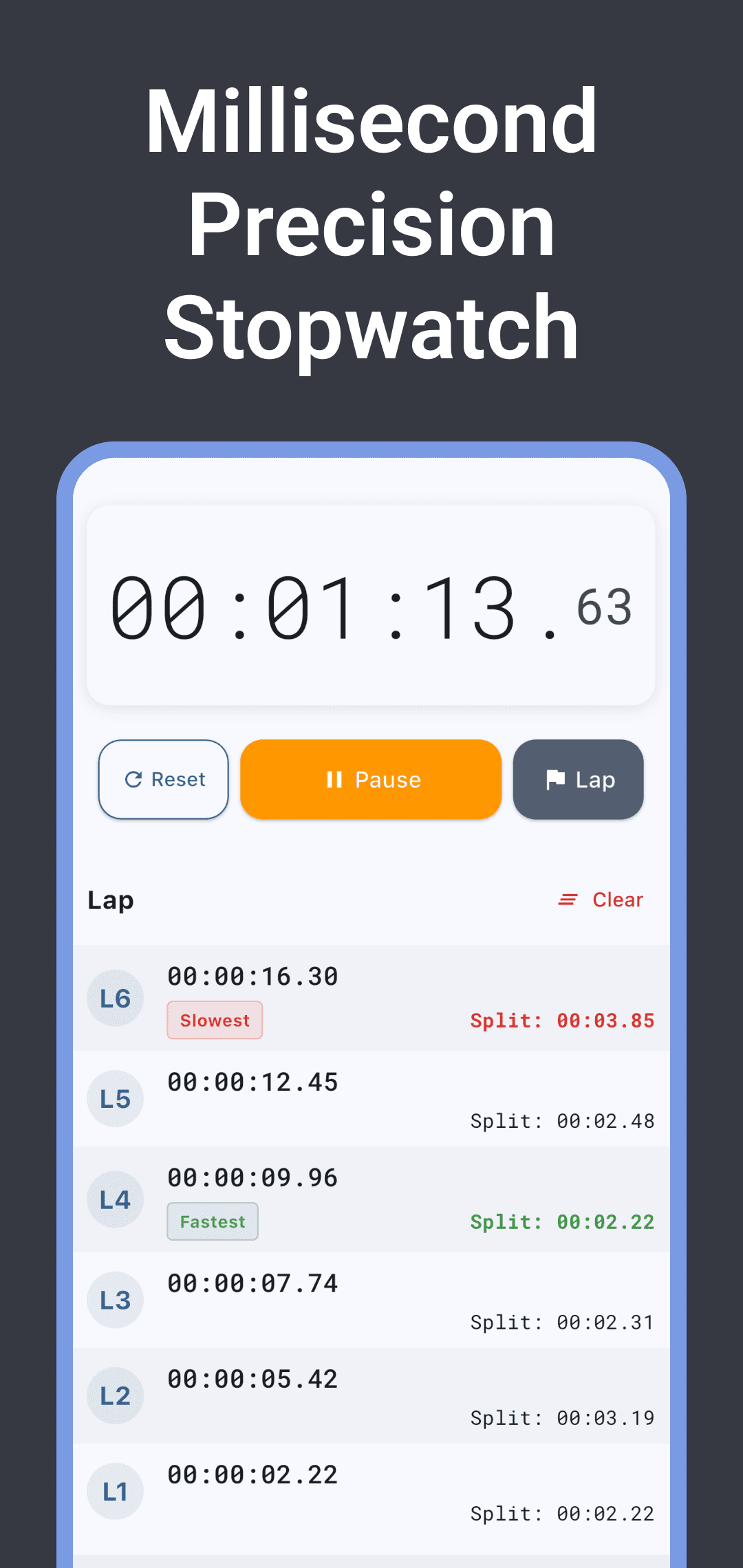
Use Stopwatch and read laps
- Choose Stopwatch in the bottom navigation and press Start.
- Press Lap when you want a split. Each row shows the cumulative timestamp and the interval since the previous lap.
- Press Pause, then Start to continue. The resume button is also labeled Start in this app.
- Clear removes the lap rows without stopping or resetting elapsed time. The next first lap uses the total elapsed time since the start as its split.
- The left circular-arrow reset control clears both elapsed time and the lap list. Keep a separate copy of any result you need before resetting.
With at least two laps, FAST highlights the shortest split and SLOW the longest. This compares intervals in the current list; it does not analyze athletic performance or experimental results. If splits are tied, the fastest highlight can take priority.
Understand Quick Add, Custom Time and Recent
| Choice | What it does | Example |
|---|---|---|
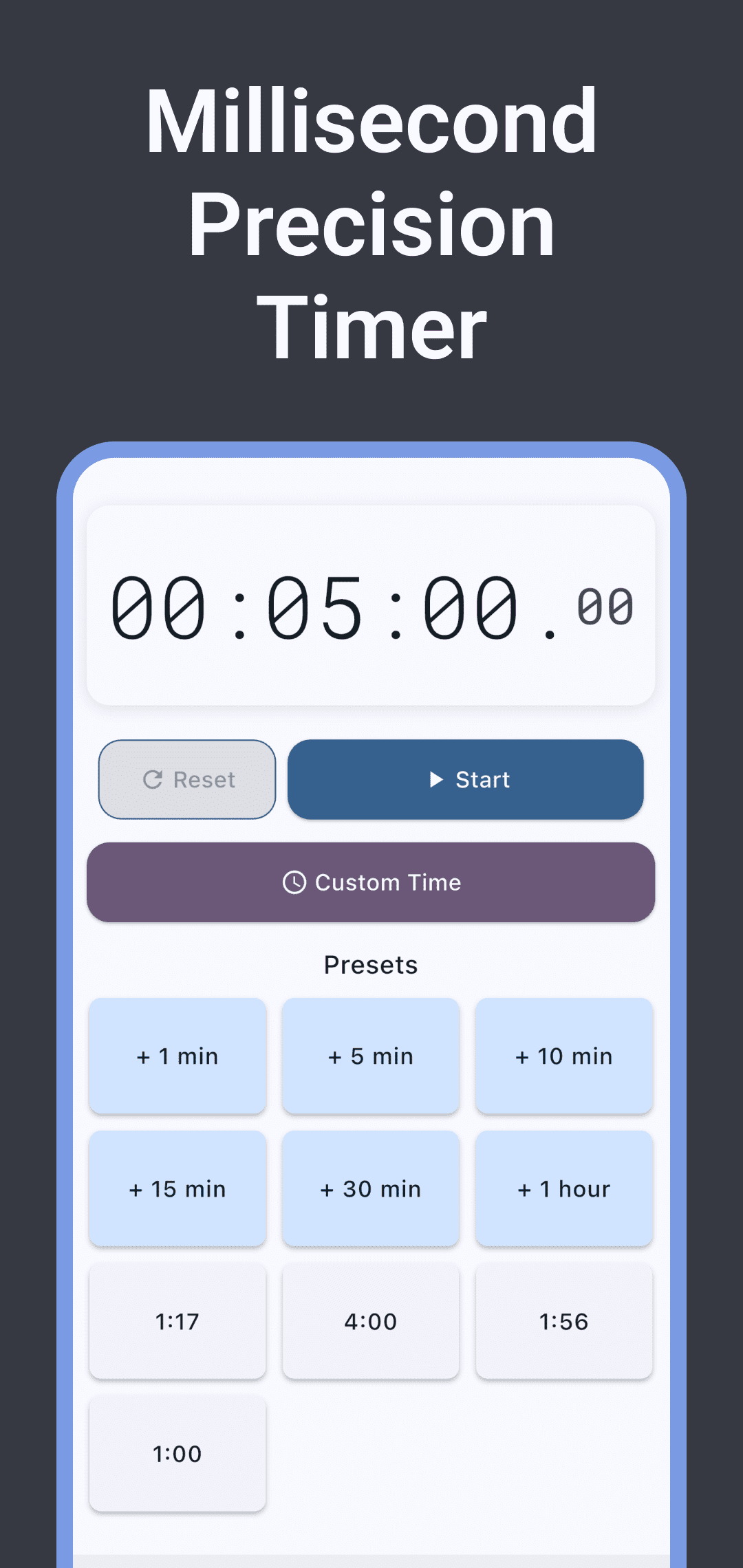
| Quick Add | Adds the selected duration to the current setting. | Before starting, 1m followed by 5m makes six minutes. |
| Custom Time | Replaces the target with hours, minutes, seconds and three fractional digits. | Choose a value in Set Time, then press Done. |
| Recent | Replaces the duration with a recent custom value. | It does not add that value to the existing time. |
| Pause → Start | Stops and continues the current countdown. | Use this to retain progress rather than resetting it. |
| Reset | Restores the current target and requests that completion sound/vibration stop. | Use before changing the time or starting again. |
Choose Timer in the bottom navigation. Its initial duration is zero, so set a time before starting. Quick Add offers 1m, 5m, 10m, 15m, 30m and 1h. These buttons add time; they are not named saved presets. The time selector can be hidden while running or paused after progress. Use Reset and check the display before choosing a different duration.
Open Custom Time → Set Time to select hours, minutes and seconds. For a fractional value, open the button labeled like .000 ms and use the 100, 10 and 1 digit wheels to choose 000–999ms, then press Done. The hours/minutes/seconds picker reaches 23:59:59, with the fractional part added separately. The result must be greater than zero.
Applied custom values appear under Recent, newest first, up to ten entries. Reusing a value moves it to the front. Quick Add values are not all automatically saved there. Recent durations and settings are stored locally, but durable session/lap history or export was not found in the current screens. Keep any result you need before closing the app.
Choose display and completion settings
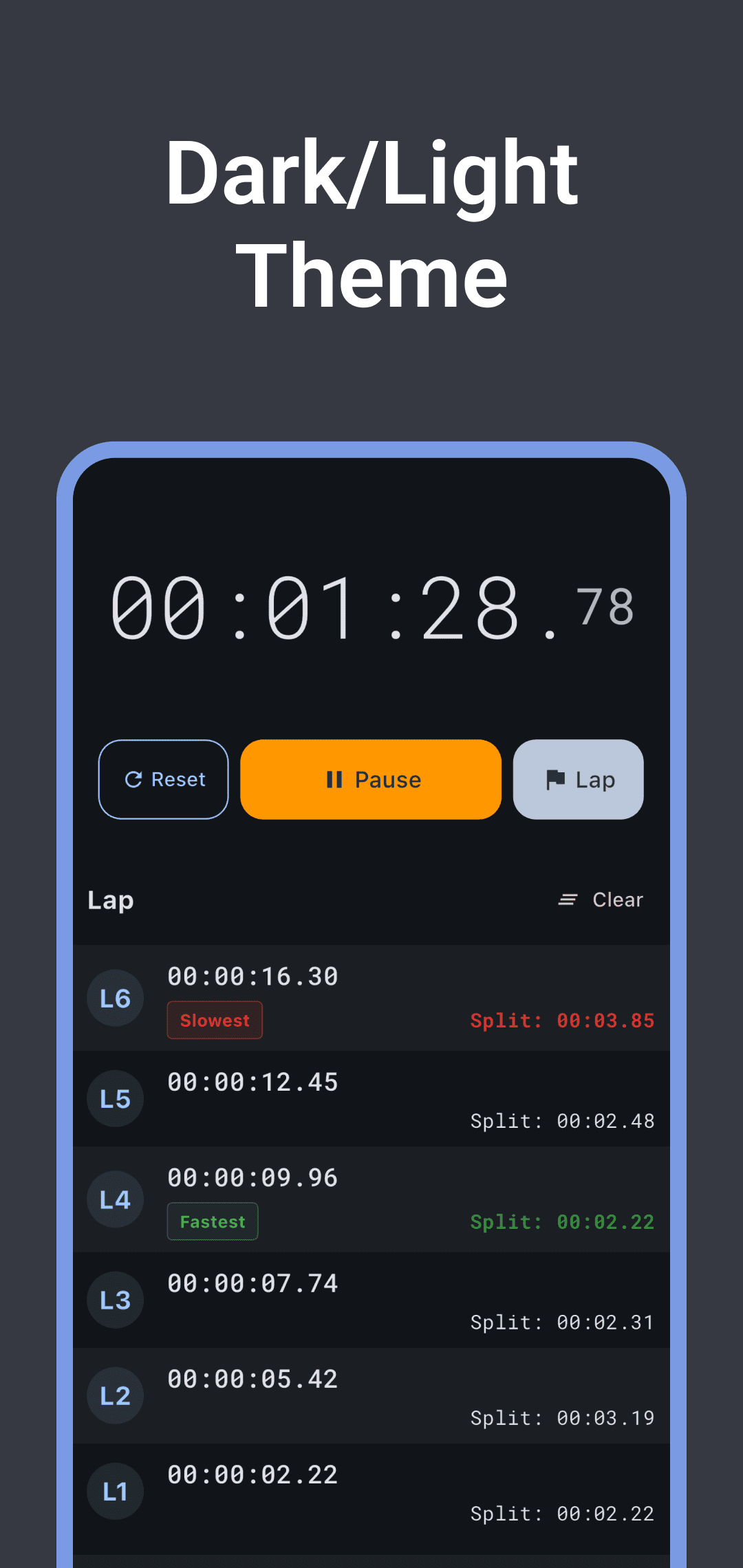
In Settings, Show Hours controls the hour field; Theme offers System, Light and Dark; Vibration and Sound control completion requests. Keep Screen On requests an awake screen while the timer or stopwatch is running. Check actual screen retention and sound/vibration delivery on your device and operating system.
Leave Show Hours enabled for sessions of an hour or more. With it disabled, the current implementation hides hours and displays minutes from 0 to 59. For example, one hour and two minutes appears as 02:00.000; do not read that as a two-minute total.
On completion, the display shows COMPLETED and zero, and enabled completion helpers are requested. This has not been verified as a scheduled system alarm or an alert guaranteed after the app closes. Check it on your device with the app open first. A dark theme changes the appearance; it does not establish reduced eye strain or improved concentration.
Separate fractional digits from measurement accuracy
The app reads elapsed time from Dart Stopwatch and updates the display. As the periodic timer documentation explains, callback intervals can vary. Three displayed digits, refresh cadence, manual start/stop error and measurement accuracy are separate considerations. This is not an automatic sensor logger or video-frame synchronization feature.
If you also need a current-time clock, see ms clock's clock, timer and stopwatch guide.
Download and get support
Use the download section below for Google Play or the App Store. The public Apple version is 1.2.1; earlier update notes describe three-digit fractions and millisecond duration selection. This guide compares current source with public information. It does not verify every installed screen, device accuracy, real storage or alert delivery.
For a different result, contact support with the device, operating system, app version, selected duration and reproduction steps. Advertising and privacy information is available in the privacy policy and current store disclosures.