
Workout & Rest Interval Timer repeats a fixed work interval and rest interval for a chosen number of rounds. Set Count, then enter minutes and seconds under Work Interval and Rest Interval. The running screen shows the current round, phase progress, elapsed time and estimated finish time.
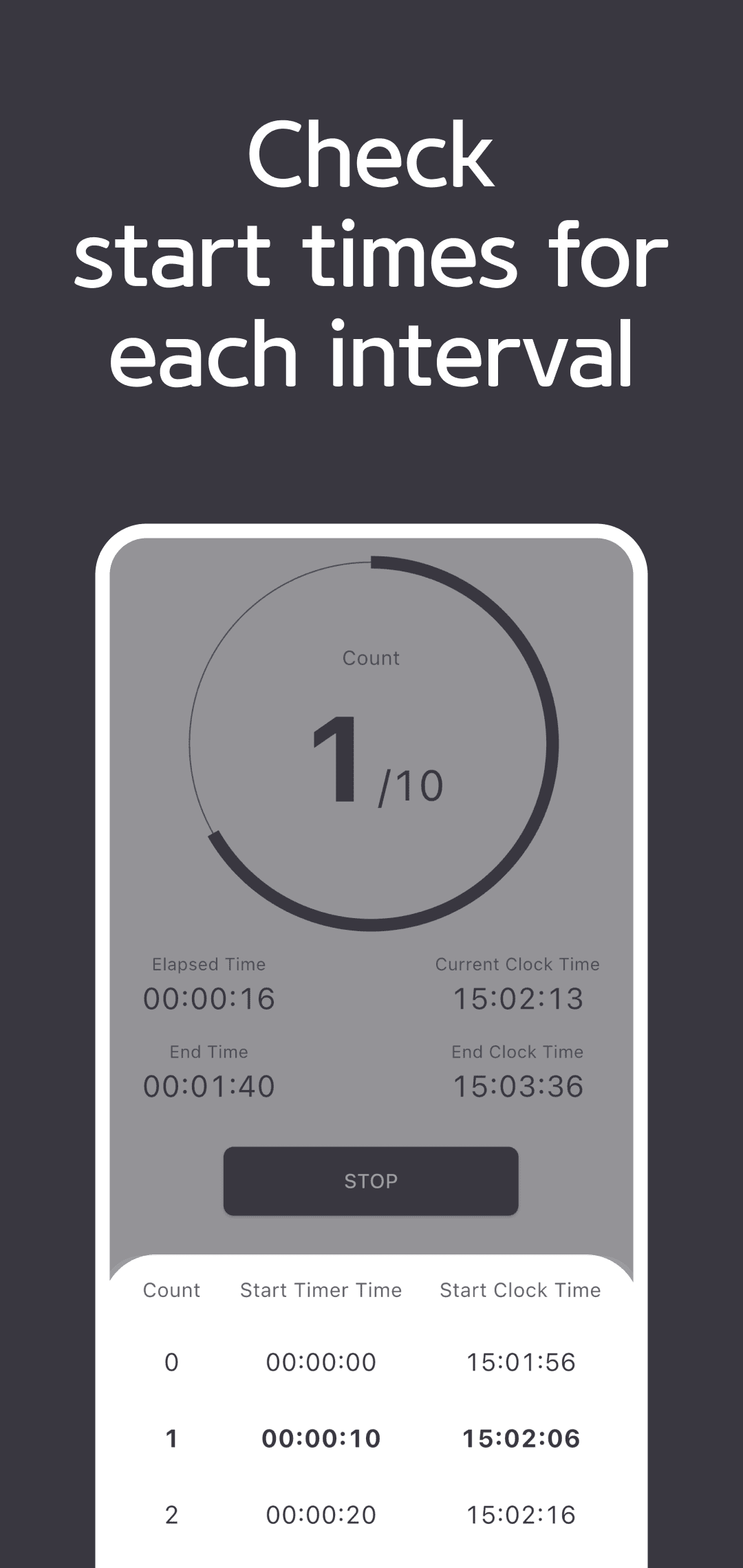
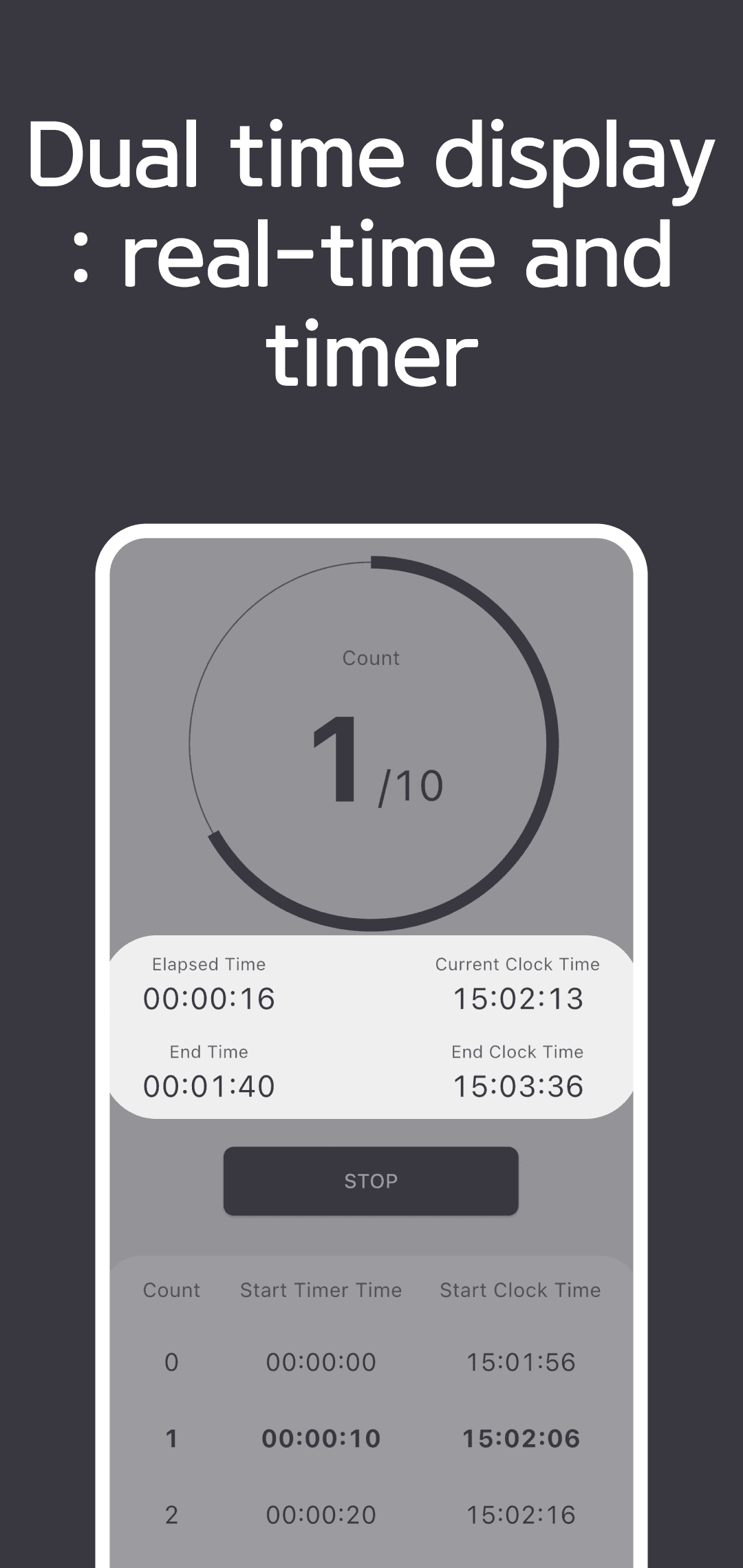
This guide compares the current source with public 1.1.6 information. The original 2024 images below predate the separate rest input; follow the current Work/Rest instructions in the text. You can use repeated intervals for exercise or study, but the app's timing features do not establish workout results or improved concentration.
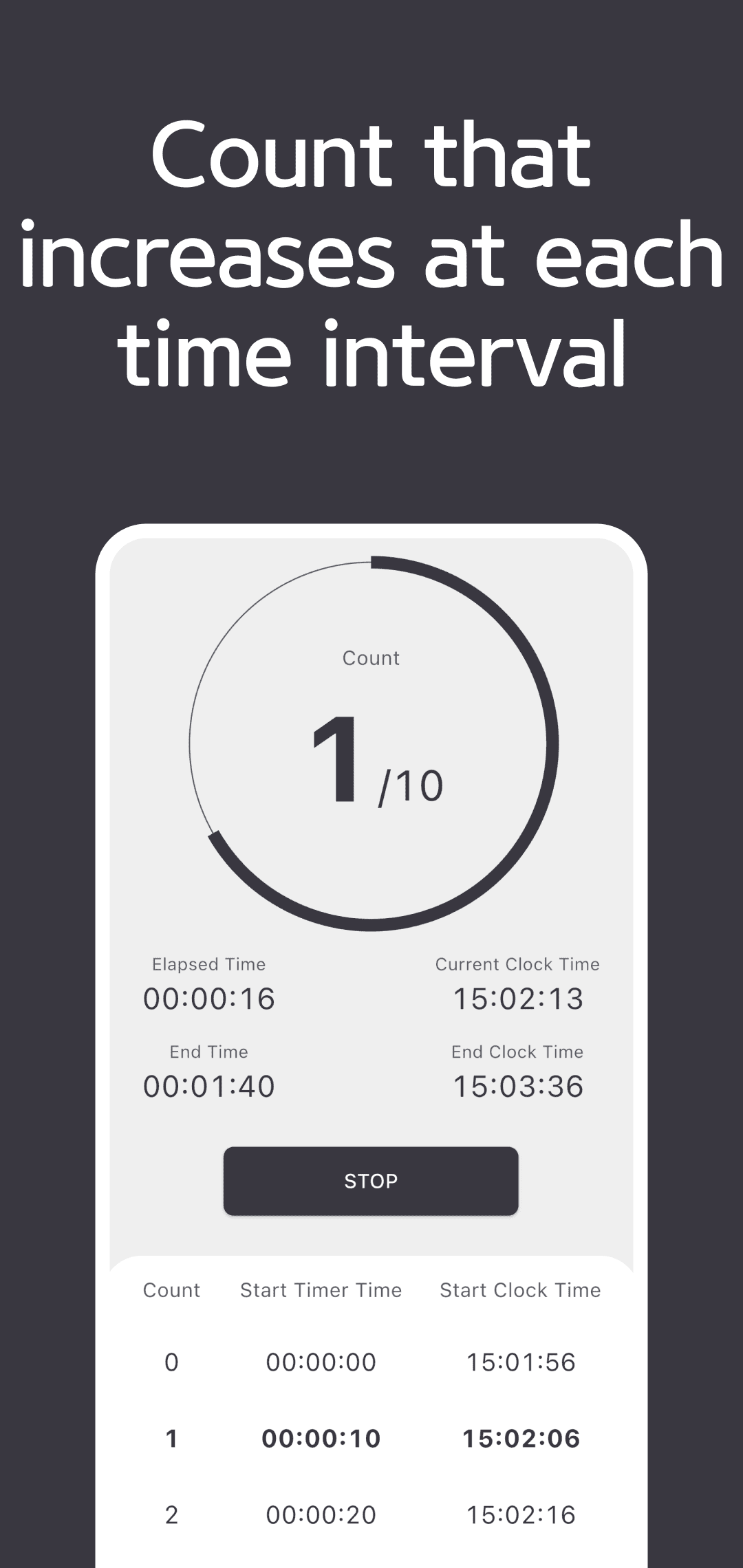
Set count, work and rest, then start
- Swipe the Count numbers horizontally to select rounds. The input range is 0–100; a valid start requires 1–100.
- Set Minutes and Seconds under Work Interval. Minutes range from 0–999 and seconds from 0–59. Work must be greater than zero to start.
- Set Rest Interval with the same minute and second ranges. Choose 0 minutes 0 seconds for no rest. The initial defaults are Count 1, Work 10 seconds and Rest 0 seconds.
- For example, Count 8, Work 20 seconds and Rest 10 seconds gives
(20 + 10) × 8 = 240 seconds, or four planned minutes. This includes the final ten-second rest after the last work interval. Scroll the input screen if START is out of view after adjustments. - Tap START. Zero Count or zero Work leaves you on the input screen, so check the values. A valid start begins the first Work phase and shows STOP.
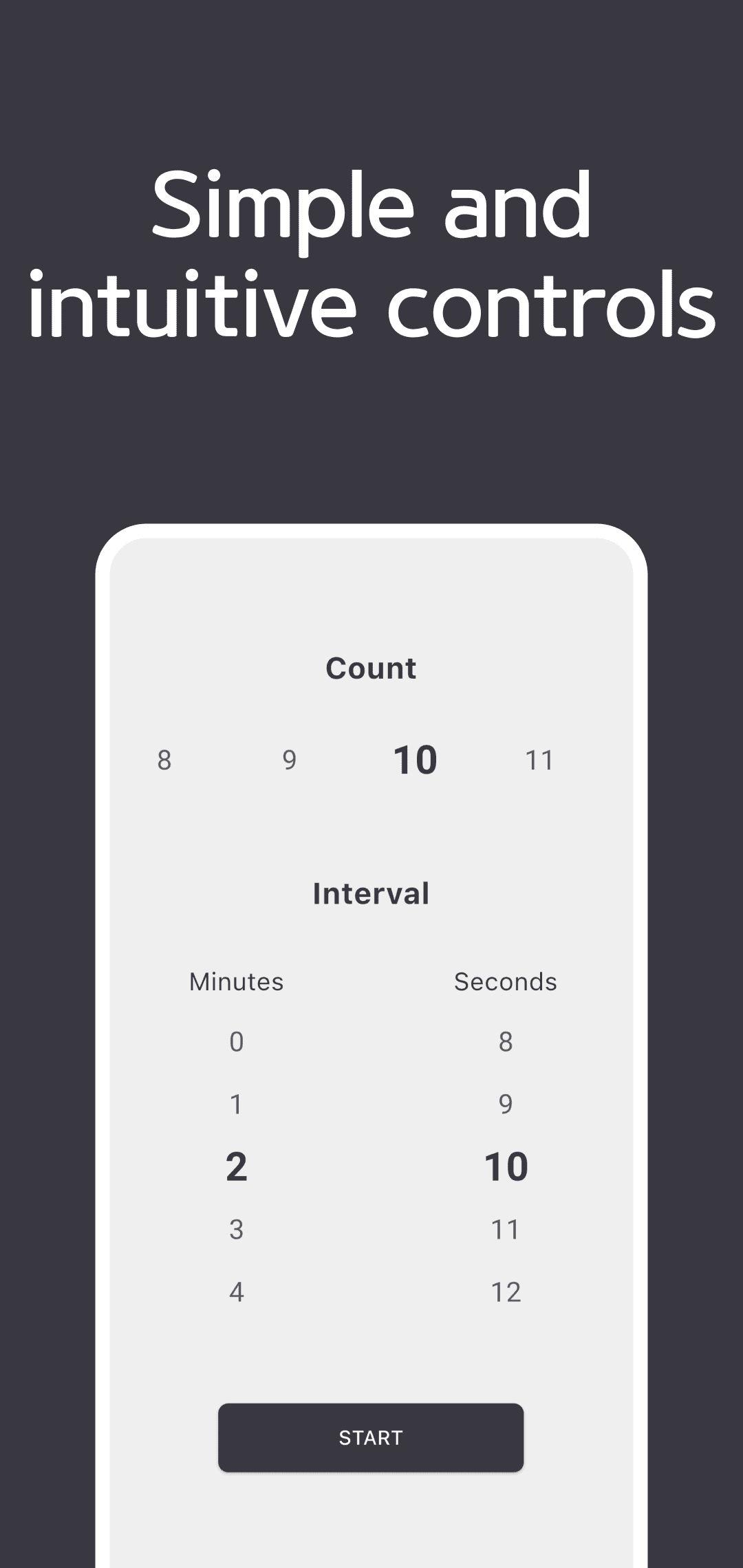
Follow the current round and Work/Rest phase
The large 1/8 means round one is in progress. After Work, the timer switches to Rest within that round; after Rest, it advances to the next round. The circular indicator and its hours:minutes:seconds digits show elapsed time in the current phase, rather than remaining-time digits.
With zero Rest, the list omits Rest rows. The current implementation still passes through a phase transition for zero rest, so planned total time and actual completion time are not guaranteed to match exactly.
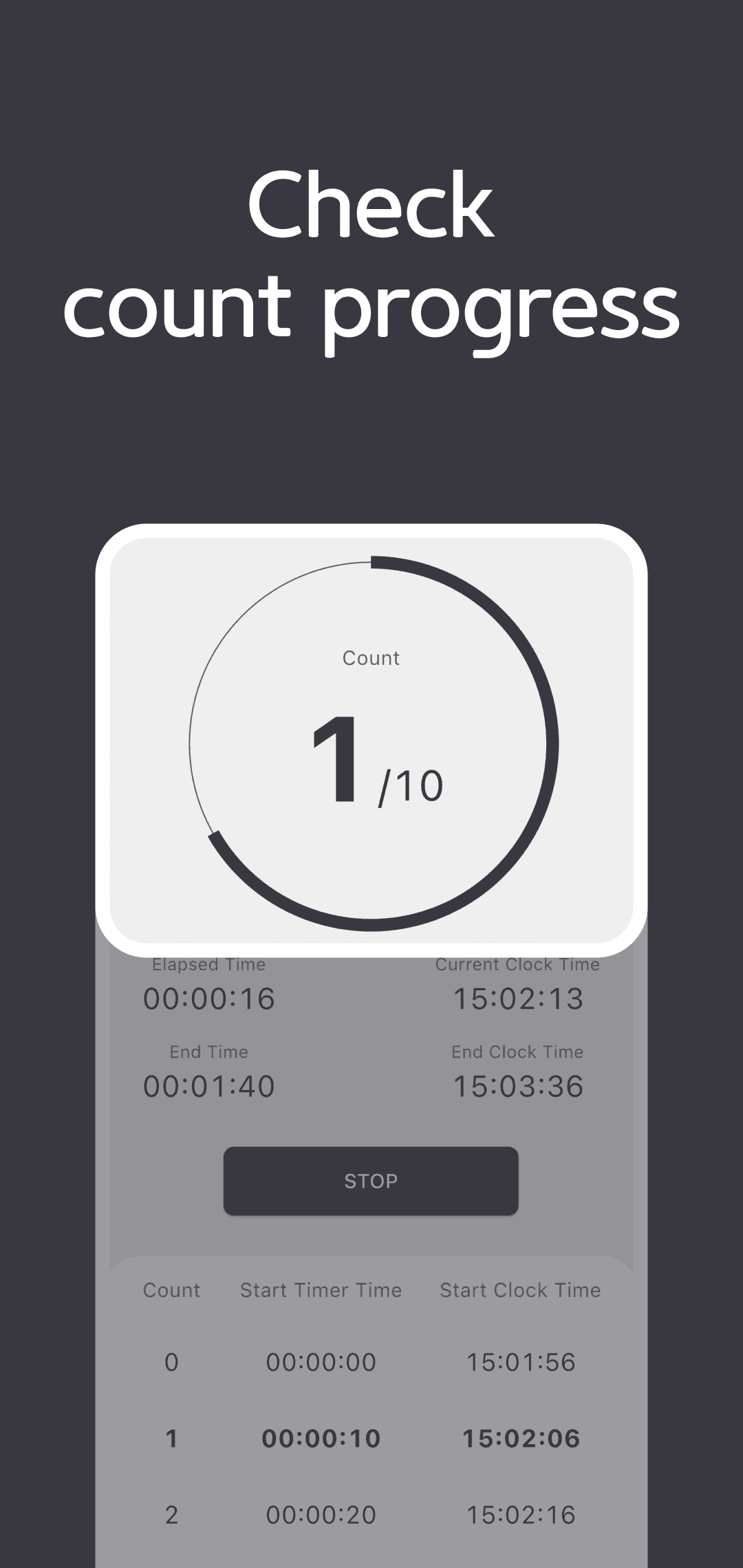
Read the time displays and interval list
| Display | Meaning |
|---|---|
| Work/Rest and round numbers | The current phase and current round / configured rounds. |
| Circular progress and its time | Elapsed time within the current Work or Rest phase; resets to zero at a phase change. |
| Elapsed Time | Total elapsed time in this run. |
| End Time | Planned total duration: (Work + Rest) × Count. |
| Elapsed Clock Time | The device's current time of day, rather than elapsed duration. |
| End Clock Time | The start-time device clock plus the planned total duration. |
| Start Timer Time | The planned relative start offset of each phase. |
| Start Clock Time | The planned device-clock start time of each phase. |
The Count, Phase, Start Timer Time and Start Clock Time list is a schedule calculated in full when you tap START. Future rounds appear immediately. With Work 20 seconds and Rest 10 seconds, the first Work is scheduled at 00:00:00, its Rest at 00:00:20, and the next Work at 00:00:30. The row matching the current phase appears bold.
These rows do not log the actual times when you performed each interval. Device-clock changes or delays in execution can separate scheduled times from actual progress. Clock fields omit the date, so check the date separately for long runs crossing midnight. The older images say Current Clock Time; the current screen labels that field Elapsed Clock Time.
STOP, restarting and completion sound
Tap STOP to end timer progress and repeated completion sound, then return to inputs. Count, Work and Rest remain available within the same screen state, but the next START clears elapsed time and rounds and begins again with the first Work phase. The current screen has no Pause/Resume or skip control. For pausing a single interval and continuing its remaining duration, check the Big Timer guide.
After all rounds and the final Rest, the app requests a completion beep up to 10 times, at 1.5-second repeat intervals. STOP remains on the running screen after completion; use it to silence the sound or return to configuration. This screen has no sound chooser, mute switch or vibration switch. Try a short run to check actual sound on your installed version and device.
Storage, screen retention and estimated clock times
The current screen has no saving or export for its inputs, active session or schedule. A freshly prepared screen returns to Count 1, Work 10 seconds and Rest 0 seconds. If you need to keep the displayed result, capture it separately before tapping STOP.
At startup, the app requests portrait orientation and keeps the screen awake. Check actual screen behavior and operation while the app is out of view on your device, operating system and installed version. As Dart's periodic timer documentation explains, callback spacing can vary. The estimated finish time does not establish precise measurement or a scheduled alarm after the app closes.
Download, privacy and support
Use the shared Google Play or App Store download links below. The current source disables its app-open and exit-ad switches, while the stores still provide advertising and privacy information. Check the latest disclosures for your installed version.
If behavior differs, send the app version, device, operating system, Count/Work/Rest inputs and START/STOP sequence through Contact. You can also read the Privacy Policy.