
A phone clock can show the current time, a stopwatch can count up from a starting point, and a timer can count down from a duration you choose. Those are different tasks. A moving fractional display does not, by itself, make an app a calibrated reaction-time or laboratory instrument.
This guide uses ms clock as a concrete example for five everyday timing tasks. For installation and detailed controls, see the ms clock introduction.
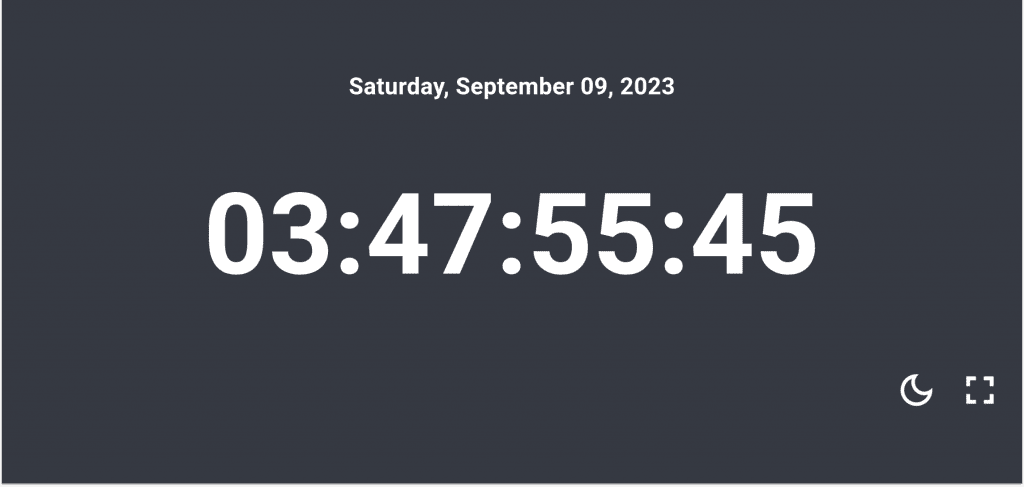
What fractional digits actually tell you
One second contains 1,000 milliseconds. A two-digit fractional display changes in 0.01-second steps, or 10ms, rather than displaying each 1ms. The currently reviewed ms clock source offers zero, one or two fractional digits for Clock.
Display resolution and measurement accuracy answer different questions: which changes can be shown, and how close the result is to the reference being measured. Human start/stop timing can add uncertainty too. NIST's stopwatch calibration procedure considers operator reaction, repeatability and device resolution separately. No calibration result for this app is being claimed.
| Task | Use | Keep in mind |
|---|---|---|
| Keep the time visible on a desk | Clock | It displays device time, with optional manual offset. |
| Show a time reference in a casual recording | Clock | A visible display does not automatically timestamp video frames. |
| See how long one task takes | Stopwatch | Start/stop actions are part of the measurement. |
| Note repeated intervals | Stopwatch + Lap | Use an uninterrupted run; current lap timing can include a pause. |
| Count down a short work or study period | Timer | Check the in-app completion behavior on your device. |
1. Keep a desk clock visible
Open Clock, choose portrait or landscape orientation, and use the fullscreen control if you want a larger display area. Adjust the main digits in Settings rather than treating a faster-looking display as more accurate. You can hide the fractional digits if hours, minutes and seconds are easier to read.
Clock uses your device time. Time Offset manually adds or subtracts up to 5,000ms from the displayed time and date. Keep it at zero unless you intentionally want a shifted display. An offset does not change the device clock or automatically synchronize it with another device.
2. Show a visible time reference in a recording
For a casual recording of a demonstration, you can keep the Clock display visible and note its settings. Check the displayed date, fractional-digit choice and Time Offset before recording; retain the original recording when making comparisons later.
The displayed numbers are a reference to the phone's clock. They do not establish the exact time of a camera frame, synchronize separate cameras, or capture a sensor event automatically. Scientific measurements or tests requiring a known timing error need a measurement method and equipment validated for that purpose, rather than a screen display alone.
3. See how long a short task takes
Use Stopwatch when the question is “How long since I started?” Tap Start at a consistent starting point and Pause at the end. If you continue, Resume adds more running time to the total. Note what you chose as the start and finish before comparing two runs.
The total uses Dart Stopwatch, which counts elapsed time while running; updating the screen is a separate operation. Two displayed fractional digits do not remove human button-timing uncertainty or establish a certified accuracy. A manual stopwatch session is not an automated reaction-time test.
4. Note repeated intervals with Lap
For repeated steps in a practice task, start Stopwatch once and tap Lap at each boundary. ms clock lists the most recent record first and shows both total time and the lap interval. Use the same boundary rule each time so the records are comparable.
In the currently reviewed behavior, a resumed Lap interval can include time spent paused even though total stopwatch time stops. Use an uninterrupted run if you need intervals that exclude a break. Do not silently compare paused and uninterrupted records on the same basis.
Reset while stopped clears the time and lap list. While running, Restart clears records and continues measuring. The lap list belongs to the current screen session; it is not a saved or exported history after the screen is removed or the app closes.
5. Count down a short work or study period
Choose Timer for a duration known in advance. For example, select the 5m preset and tap Start. Use Pause and Resume if needed, or Reset to clear the countdown. With less than one second remaining, the paused button can read Start. The app remembers the last started minutes and seconds for the next input, rather than saving an active countdown.
At completion, ms clock shows Timer Complete! in the app and requests sound and vibration. Turning off Timer completion sound does not turn off vibration. Confirm the behavior on your device before relying on it.
Delayed app processing can make the current countdown differ from actual elapsed time. Dart's periodic timer documentation explains that callback intervals need not be exact. A locked screen or background app does not come with a guaranteed scheduled alarm here. For an appointment requiring an alert at a specific time, use your device's alarm as well. Watching a moving display is also not a promise of better focus or productivity.
Choose an app and check its limits
These are the existing related introductions, each with its own controls and installation links:
- ms clock: Clock, Time Offset, Timer and Lap Stopwatch
- Round Clock introduction
- Millisecond Stopwatch & Timer introduction
The five examples above describe ms clock; they do not establish the behavior or accuracy of every app with “millisecond” in its name. Other apps have their own display and timing behavior; check their controls and limits before comparing results.
If a display, Lap or completion result differs from this guide, contact app support with your device, OS and app version, the screen used, fractional digits and Time Offset, and whether you used Pause/Resume or backgrounded the app.
Reviewed on October 9, 2026 against local ms clock source 1.8.1+19, the prior isolated test record and public store information. The App Store listed version 1.8.1. The public Android version and installed-device accuracy, audio and background behavior were not verified by this guide review.